Settings
The Settings button in the app sidebar opens a dialog with grouped navigation. It replaces the older route-first settings screens for day-to-day workspace administration.
What you can do here
- Update your personal profile, avatar, appearance, language, password, and personal context.
- Manage workspace name, slug, description, and default workspace settings.
- Configure model providers and available models.
- Manage reusable skills, members, credits, apps, MCP servers, agent mail, datasets, API keys, and diagnostics.
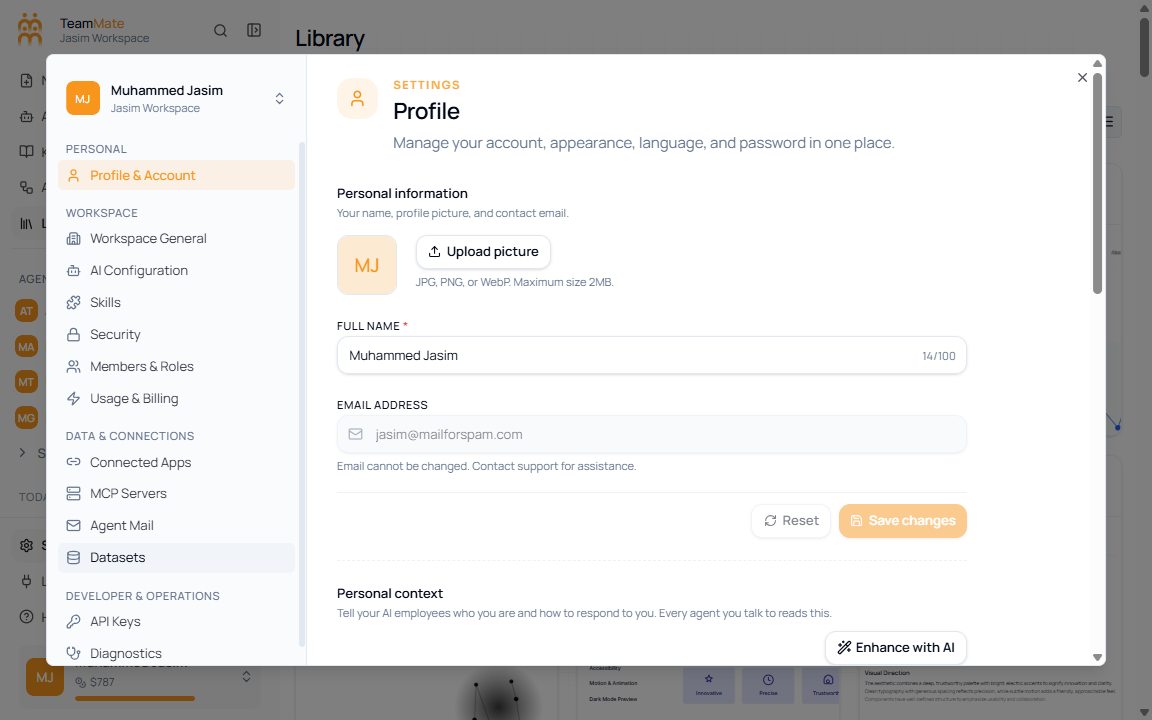
Current Settings sections
| Group | Section | Use it for |
|---|---|---|
| Personal | Profile & Account | Profile, avatar, personal context, appearance, language, and password. |
| Workspace | Workspace General | Workspace name, slug, description, timezone, language, and visibility defaults. |
| Workspace | AI configuration | Provider connections and custom model rows. |
| Workspace | Skills | Reusable instruction bundles for agents. |
| Workspace | Security | Login mode, SSO configuration, and allowed domains. |
| Workspace | Members & Roles | Search members, filter roles, remove members, and review assigned agents. |
| Workspace | Usage & Billing | Credits, billing plan, user caps, and usage controls. |
| Data & Connections | Connected Apps | Connected third-party apps and Composio profiles. |
| Data & Connections | MCP Servers | Workspace MCP server connections and tool access. |
| Data & Connections | Agent Mail | Workspace email channels and allowed senders. |
| Data & Connections | Datasets | Structured datasets available to agents and workflows. |
| Developer & Operations | API Keys | Workspace API keys and token actions. |
| Developer & Operations | Diagnostics | Inngest connection testing and operational checks. |
How to open Settings
- Open the Employee Store app.
- Use the left sidebar footer.
- Click Settings.
- Pick a section from the Settings dialog sidebar.