Channels tab
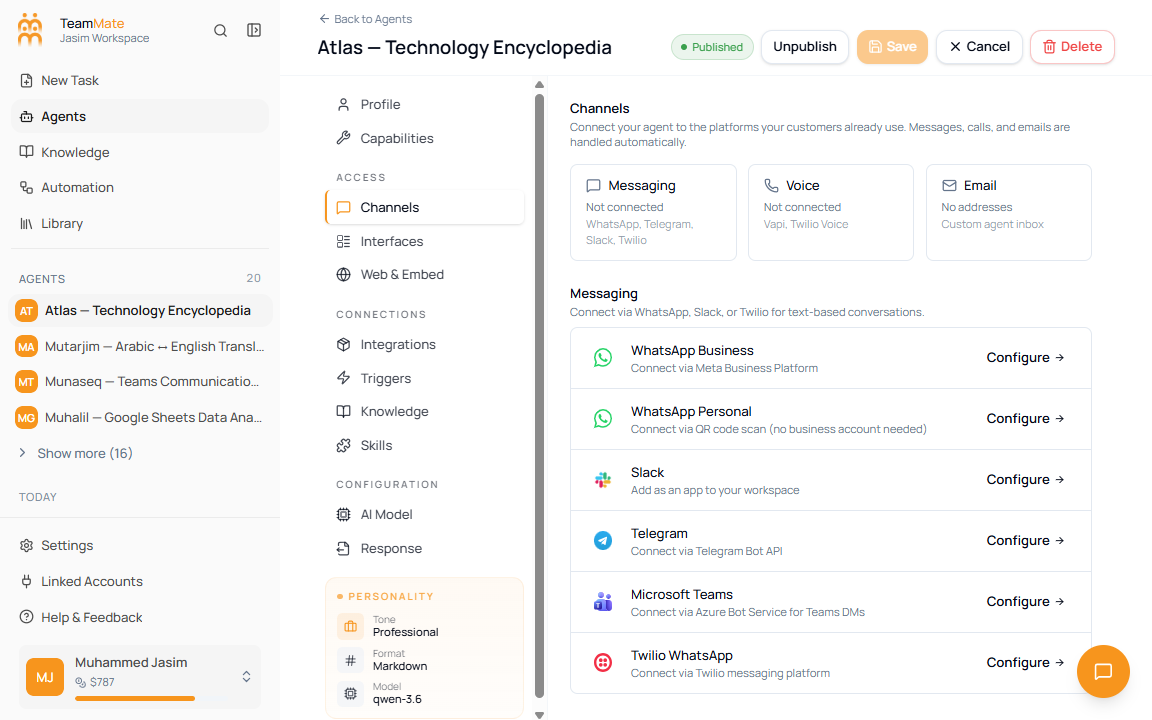
The Channels tab connects a saved agent to the places where users already communicate. It combines messaging, voice, and agent email in one tab.
What you can do here
- Review channel connection counts for messaging, voice, and email.
- Configure WhatsApp, Slack, Telegram, Microsoft Teams, Twilio, and Vapi channels.
- Add a dedicated agent email address.
- Copy or remove existing agent email addresses.
- Open allowed-sender settings for agent email.
Save requirement
Channels require a saved agent. On the create screen, this tab shows Save Agent First because provider connections, inbound webhooks, phone numbers, and email addresses must attach to a real agent ID.
Messaging channels
| Channel | What it connects | Primary setup path |
|---|---|---|
| WhatsApp Business | Meta Business Platform messaging. | Click Configure and complete the WhatsApp Business setup wizard. |
| WhatsApp Personal | QR-code WhatsApp connection without a business account. | Click Configure and scan the QR code. |
| Slack | A Slack app in your workspace. | Click Configure and authorize the Slack app. |
| Telegram | A Telegram bot. | Click Configure and provide the Telegram Bot API details. |
| Microsoft Teams | Azure Bot Service for Teams direct messages. | Click Configure and follow the Teams setup. |
| Twilio WhatsApp | WhatsApp through Twilio messaging. | Click Configure and provide Twilio details. |
Voice channels
| Channel | What it connects |
|---|---|
| Vapi Voice AI | Natural voice calls powered by Vapi. |
| Twilio Voice | Programmable voice calls through Twilio. |
Configure a channel
- Open Channels on a saved agent.
- Find the provider row.
- Click Configure.
- Complete the provider-specific wizard.
- Stop before confirming any real external action unless you intend to connect the channel.
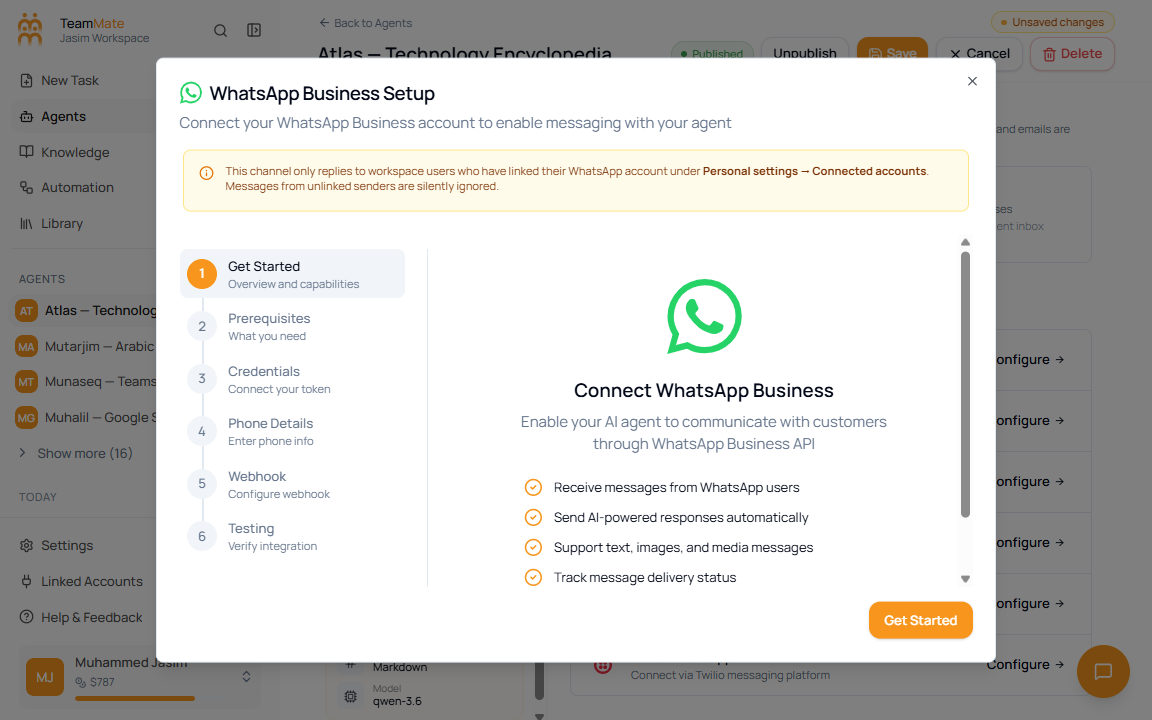
The WhatsApp Business setup wizard shows the common channel setup pattern: prerequisites, credentials, phone details, webhook setup, and testing.
Email channel
The Email section gives the agent a custom inbox. Incoming mail can be read and handled by the agent automatically.
| Control | What it does |
|---|---|
| Email prefix field | Defines the part before the agent email domain. |
| Domain suffix | Shows the fixed domain used for agent mail. |
| Add | Creates the email address for this agent. |
| Copy icon | Copies an existing agent email address. |
| Delete icon | Opens a confirmation before removing an email address. |
| Settings | Opens workspace allowed-sender settings in a new tab. |
Allowed prefixes can use lowercase letters, numbers, dots, hyphens, and underscores.
Connected and expired states
Connected rows show a Connected badge. Some channels can also show Session Expired, Reconnect, Reconfigure, Contacts, or remove actions depending on provider status.