Testing a workflow
Use manual execution to test an active workflow before relying on it for recurring or event-based automation.
What you can do here
- Run an active workflow from the Flows tab.
- Provide optional JSON execution parameters.
- Trigger another run from the execution history page.
- Open execution details and inspect step input and output.
How to run from the Flows tab
- Open Automation from the sidebar.
- Stay on the Flows tab.
- Find a workflow with the Active status.
- Click Execute.
- Leave Execution Parameters empty for a normal manual run, or enter a JSON object if the workflow expects parameters.
- Click Execute Workflow.
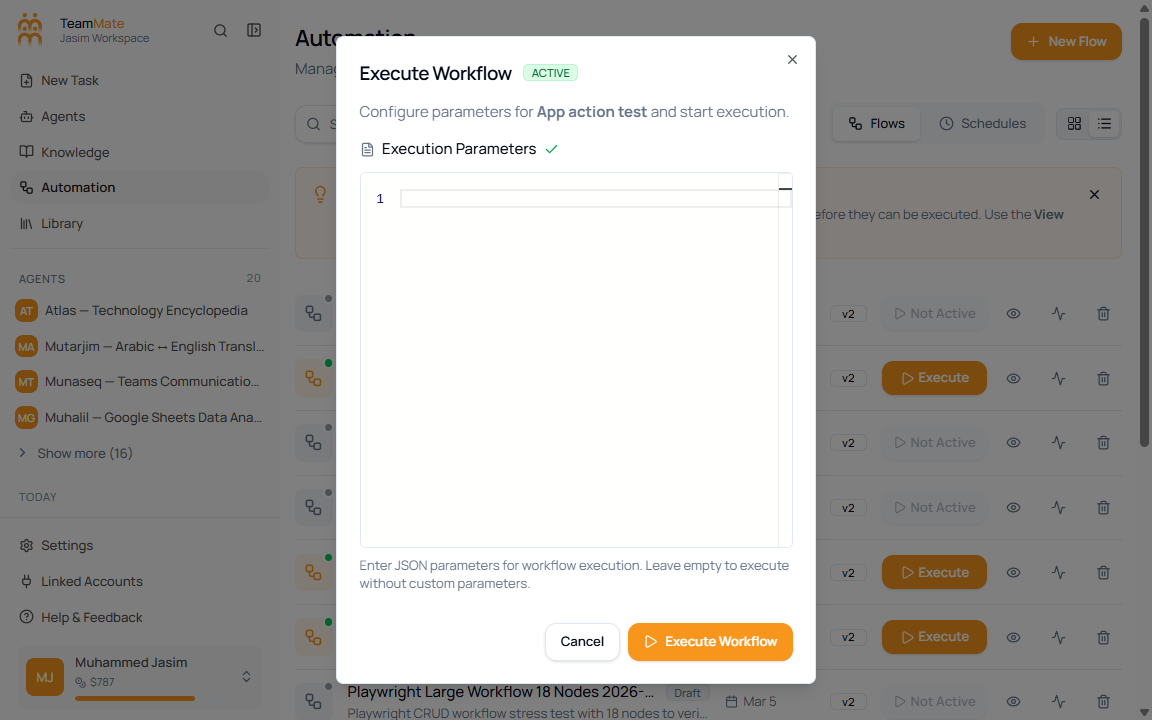
| Field | Required | Accepted values | What it controls |
|---|---|---|---|
| Execution Parameters | No | Valid JSON object, or blank | Custom input passed into the workflow execution. |
How to run from execution history
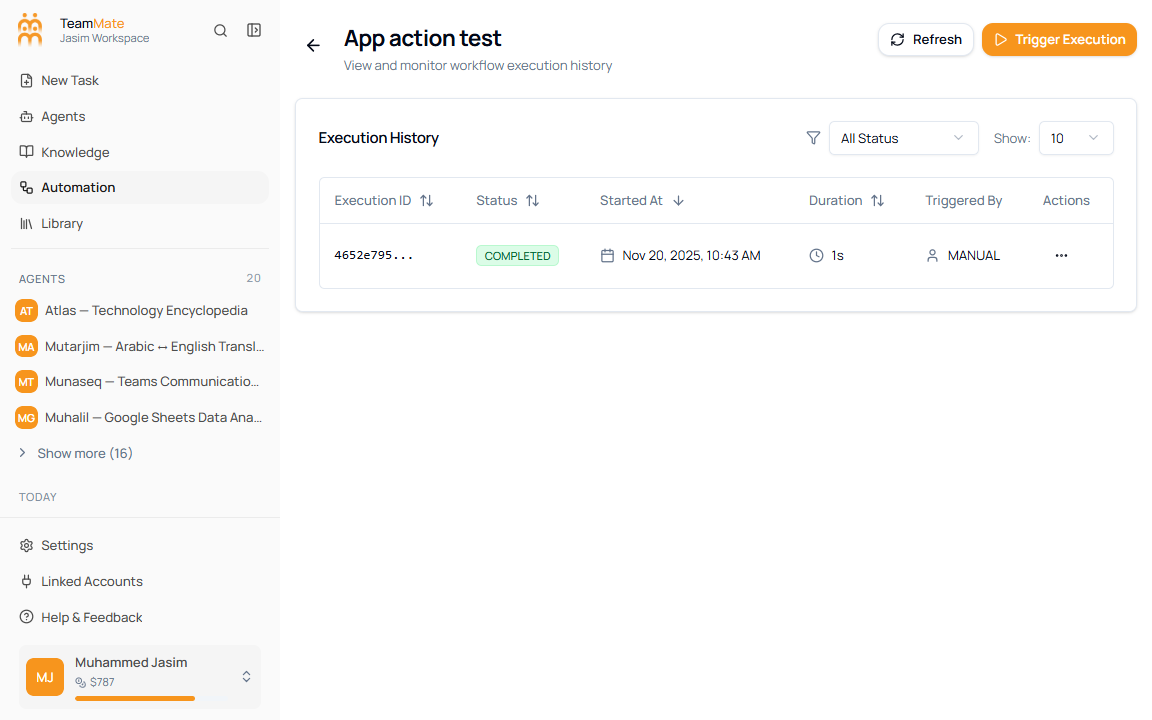
- Open the workflow’s execution history.
- Click Trigger Execution.
- Wait for the execution table to refresh.
- Open the new run from the actions menu when you need details.
How to review the result
- In execution history, open the actions menu for a run.
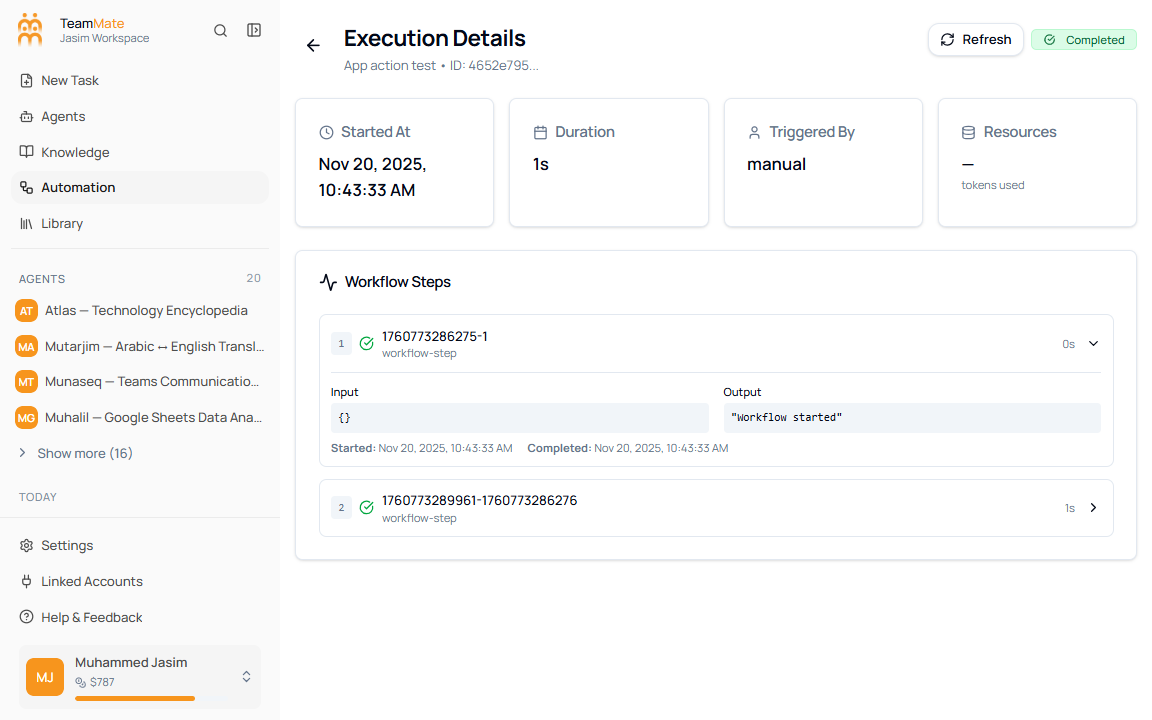
- Click View Details.
- Review Started At, Duration, Triggered By, and Resources.
- Expand Workflow Steps rows to compare the step input and output.
Debug checklist
- If Execute says Not Active, open the flow in the builder and activate it before testing.
- If a step output is empty, inspect the previous step input first.
- If a run fails, compare it with the most recent completed execution.
- If manual parameters are needed, use valid JSON and keep the payload small while testing.