Composer, slash menu & skills
The composer is the prompt box at the bottom of Chat. It uses a rich editor so commands, skills, comments, agents, and file mentions can appear as inline tokens before the prompt is sent.
What you can do here
- Type a prompt and press Enter to send.
- Press Shift+Enter for a new line.
- Type
/to open the slash menu. - Type
$to search and attach skills. - Type
@to mention files when a browser workspace folder is attached. - Toggle Plan, attach files, record voice, send, or stop an answer.
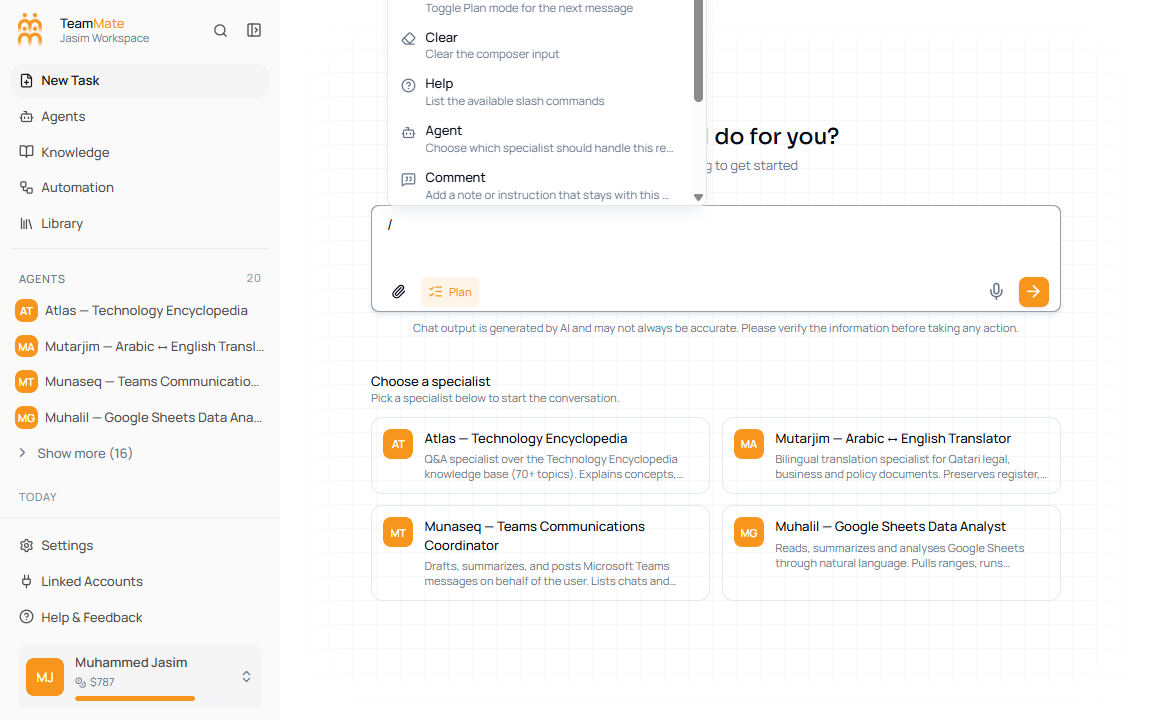
Slash menu options
| Option | What it does |
|---|---|
| Compact | Summarizes older turns to free context. |
| Plan | Toggles Plan mode for the next message. |
| Clear | Clears the composer input. |
| Help | Lists available slash commands. |
| Agent | Opens a specialist picker. |
| Comment | Adds a note or instruction token to the message. |
| Code review | Adds a review-oriented command token. |
| Summarize | Adds a summarization command token. |
| Draft email | Adds an email-drafting command token. |
Skills
Type $ to open the skills picker. A selected skill is inserted as an inline token and sent with the prompt so the runtime can resolve the reusable instruction bundle.
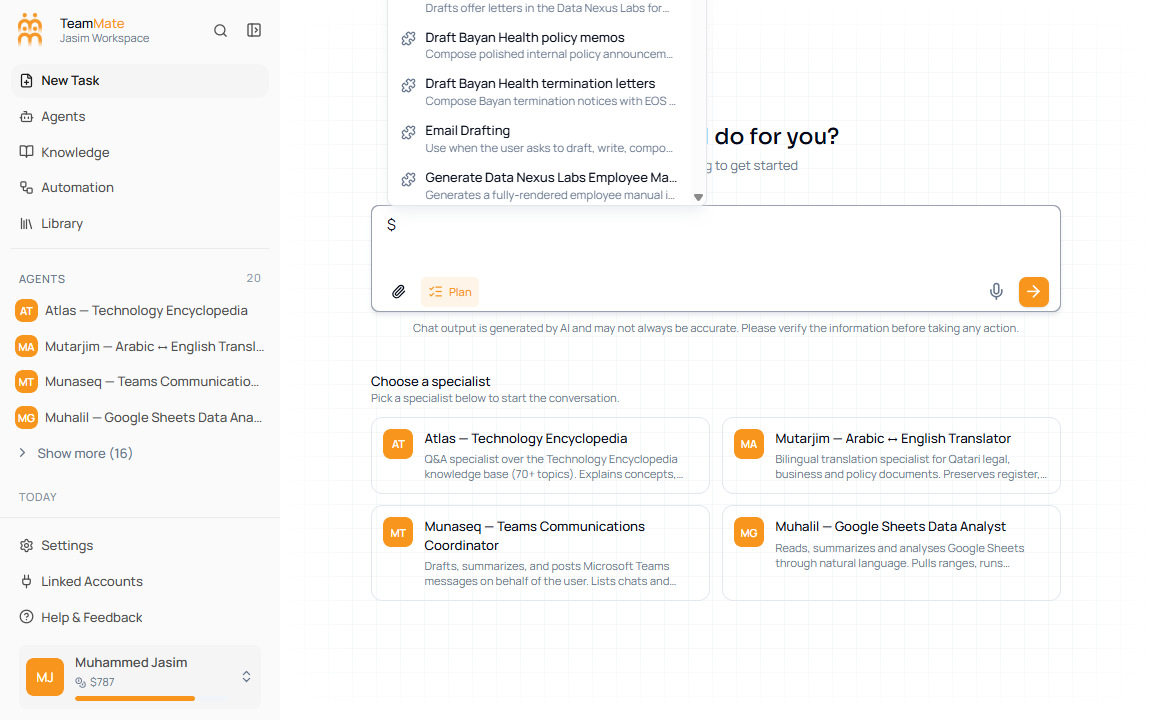
Toolbar controls
| Control | What it does |
|---|---|
| Attach file | Uploads one or more files to the current chat. |
| Folder chip | Appears for browser-workspace agents so you can attach or reconnect a local folder. |
| Plan | Switches the next message into plan-and-approve behavior. |
| Microphone | Records speech and transcribes it into the composer. |
| Send arrow | Sends the message when the composer has content. |
| Stop | Appears during a response and stops the active stream. |