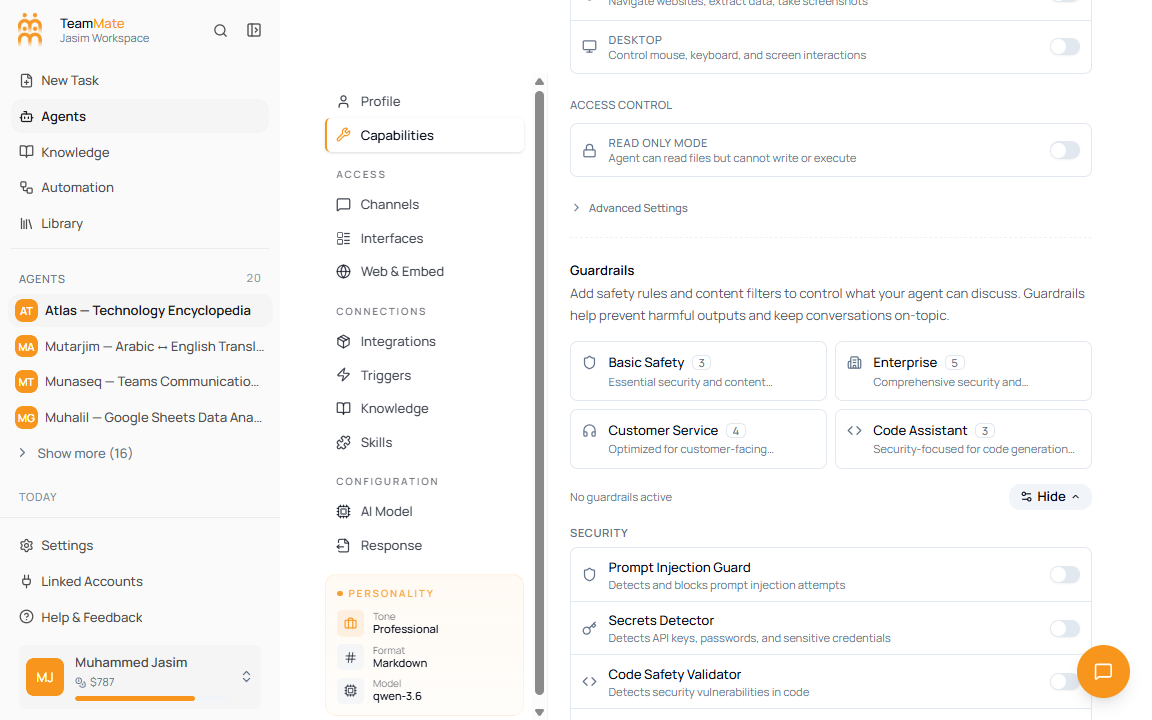
Capabilities tab
The Capabilities tab controls what users can do in chat and what the agent can do while working. Use it to enable chat features, workspace execution, API access, artifacts, and guardrails.
What you can do here
- Turn chat experience features on or off.
- Enable a sandboxed workspace.
- Choose where the workspace runs.
- Set workspace scope, access, capabilities, and advanced execution controls.
- Apply guardrail presets or customize individual safety rules.
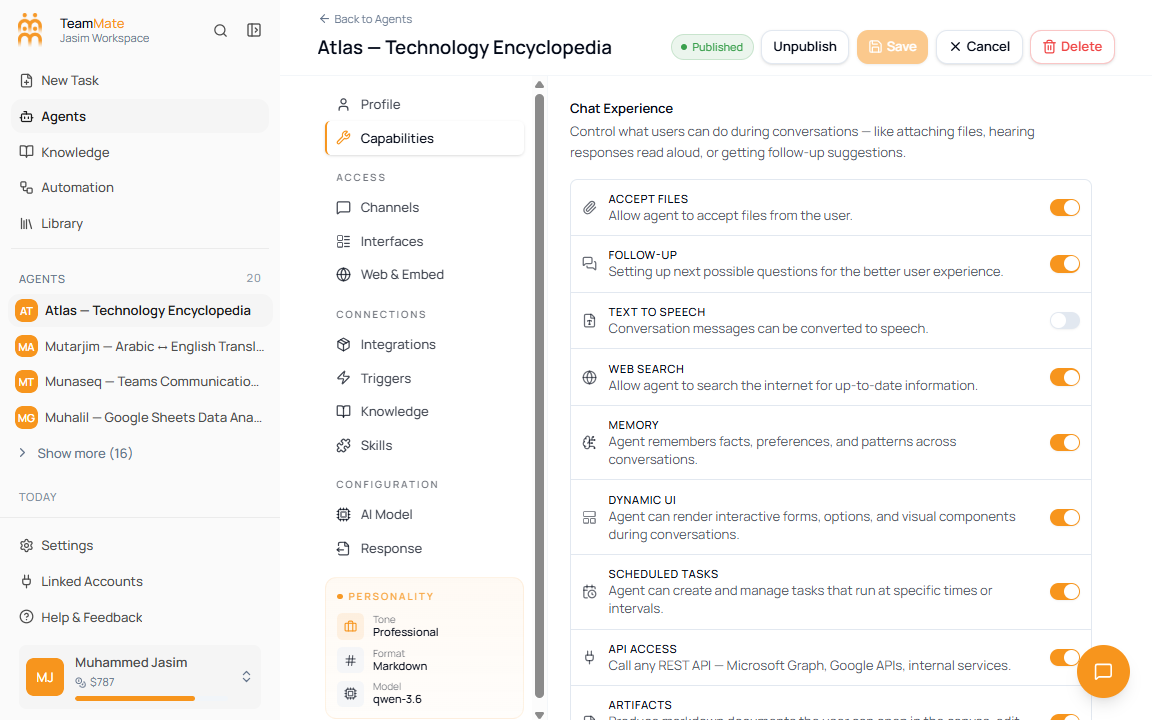
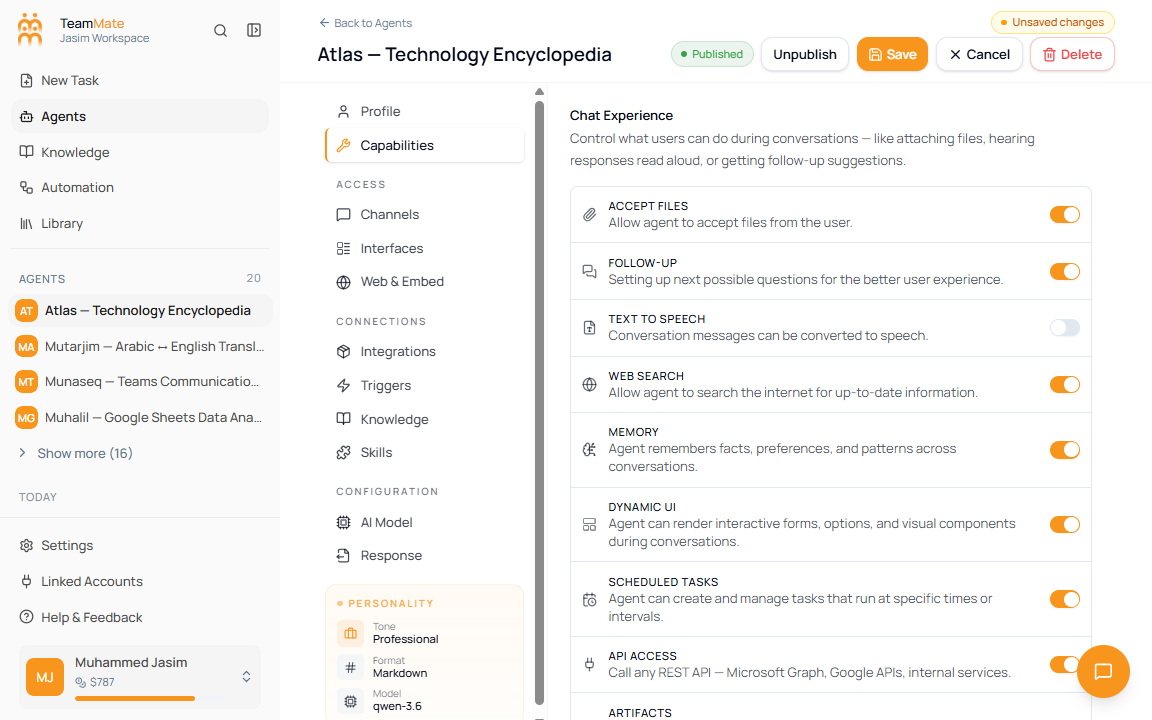
Chat experience toggles
| Toggle | What it allows |
|---|---|
| Accept files | Users can attach files in conversations. |
| Follow-up | The chat can show suggested next questions. |
| Text to Speech | Conversation messages can be converted to speech. |
| Web Search | The agent can search the internet for current information. |
| Memory | The agent can remember facts and preferences across conversations. |
| Dynamic UI | The agent can render interactive forms, options, and visual components during chat. |
| Scheduled Tasks | The agent can create and manage tasks that run later or on a schedule. |
| API Access | The agent can call REST APIs such as Microsoft Graph, Google APIs, or internal services. |
| Artifacts | The agent can produce markdown documents users can open, edit, and download. |
Enable workspace execution
- Turn on Enable Workspace.
- Choose an environment.
- Choose workspace scope if the environment supports it.
- Enable only the capabilities the agent actually needs.
- Use Read Only Mode for agents that should inspect files without modifying them.
Workspace environments
| Environment | Runs where | Notes |
|---|---|---|
| Browser (User’s Computer) | The user’s browser through the File System Access API. | Chrome or Edge required. Only file-system access is shown because server-side shell, code, browser, and desktop controls do not apply. |
| Host (Server) | The server local file system. | Useful for development and testing. |
| Container (Docker) | An isolated server container. | Use when the agent needs a contained runtime. |
| Cloud Sandbox (Daytona) | Managed cloud sandbox. | Needed for browser automation and desktop work; marked as higher cost. |
Workspace options
| Option | What it controls |
|---|---|
| Per Chat Workspace | Each chat gets its own isolated files and runtime state. |
| Shared Across Agent | All chats for the agent reuse the same workspace and accumulated state. |
| File System | Read, write, and manage files. |
| Shell Access | Execute commands, run scripts, and manage processes. |
| Code Execution | Run code in supported languages when shell is not the selected capability. |
| Browser | Navigate websites, extract data, and take screenshots. |
| Desktop | Control mouse, keyboard, and screen interactions. |
| Search Indexing | Enable keyword search over workspace files. |
| Require Approval | Require user approval before tool execution. |
| Operation Timeout | Set the maximum seconds for each tool operation. |
Configure guardrails
- Choose a guardrail preset for a fast baseline.
- Click Customize to see individual guardrail categories.
- Turn on only the rules that match the agent’s risk profile.
- Review each rule’s mode, strategy, warning, and configuration fields.