Actions & nodes
Action nodes are the work steps between a trigger and an end point. Use them to call agents, generate content, run code, call APIs, retrieve data, scrape web pages, or execute connected app actions.
What you can do here
- Compare every node currently available in the builder palette.
- Choose the right node for AI, code, HTTP, app, and data-processing work.
- Understand which fields appear in each node’s config panel.
- Reference earlier node outputs when configuring downstream steps.
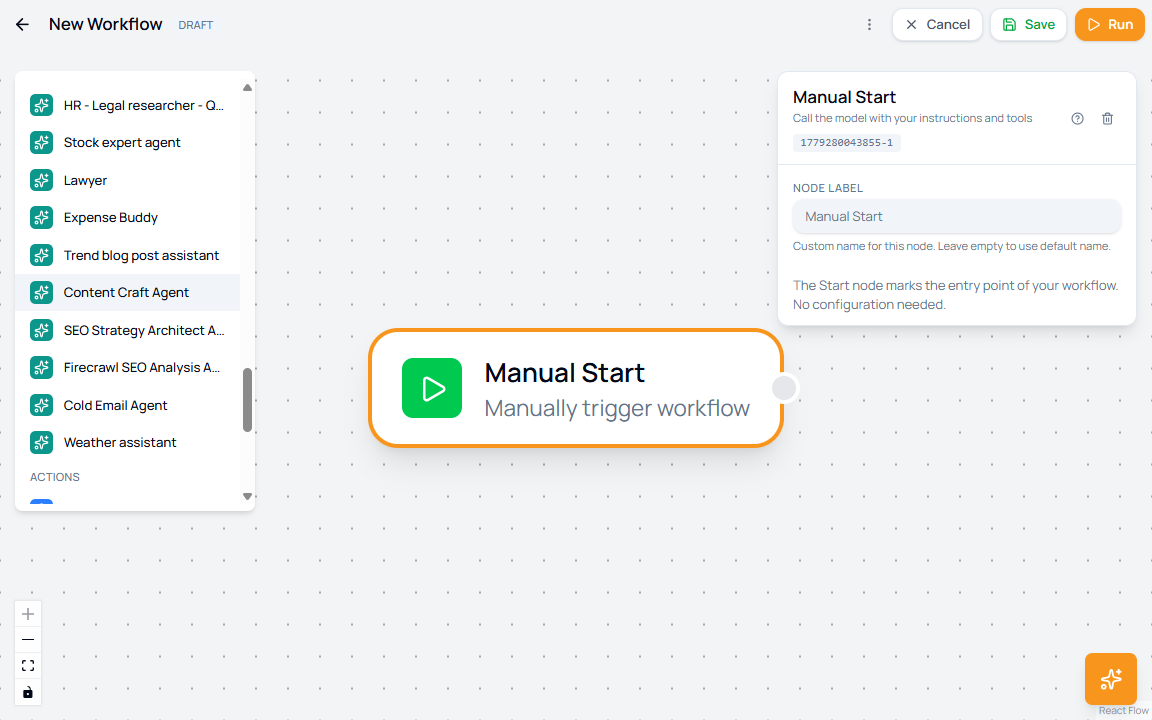
AI model nodes
| Node | Use it for | Main fields |
|---|---|---|
| Agent | Run an AI model with messages, instructions, tool-use limits, and optional structured output. | Model, System Prompt, Messages, Temperature, Max Tokens, Max Steps, Structured Output, Schema Name, Schema. |
| Published Agent | Reuse an existing published workspace agent inside a workflow. | Agent picker, Agent Information, inherited model/settings preview, User Message. |
| Image Generation | Generate an image from text instructions. | Instructions, Model, Aspect Ratio, Output Format. |
| Embedding Model | Convert text into embeddings for similarity and retrieval work. | Model and Dimensions. |
| Audio (TTS) | Convert text into speech. | Model, Voice, and Speed. |
Action nodes
| Node | Use it for | Main fields |
|---|---|---|
| HTTP Request | Call an external API. | URL, Method, Headers JSON, Body JSON. |
| Prompt | Send a simple prompt without the full agent configuration. | Prompt Content with dynamic references. |
| JavaScript | Transform data with JavaScript. | JavaScript Code. Inputs are available as input1, input2, and so on. |
| Python | Transform or analyze data with Python. | Python Code and optional Pip Packages. Inputs are available as inputs, input1, input2, and so on. |
| Tool | Define a custom tool implementation for workflow use. | Tool Name, Description, Implementation. |
| App Action | Execute an action from a connected app through the integration picker. | App, Connection, Action, and action-specific parameters. |
Data-processing nodes
| Node | Use it for | Main fields |
|---|---|---|
| Structured Output | Normalize AI output into a predictable object or array. | Schema Name and Mode. |
| Web Scrape | Fetch content from a web page. | URL. The URL can include values such as $input1 and $input2. |
| Retrieval | Search a set of documents and return the most relevant matches. | Documents JSON, Embedding Model, Top K. |
End node
The End node marks an explicit completion point. It has no required configuration. Use it when a workflow path should stop cleanly after a branch, join, or final action.
Config panel behavior
- Drag a node from the palette onto the canvas.
- Select the node on the canvas.
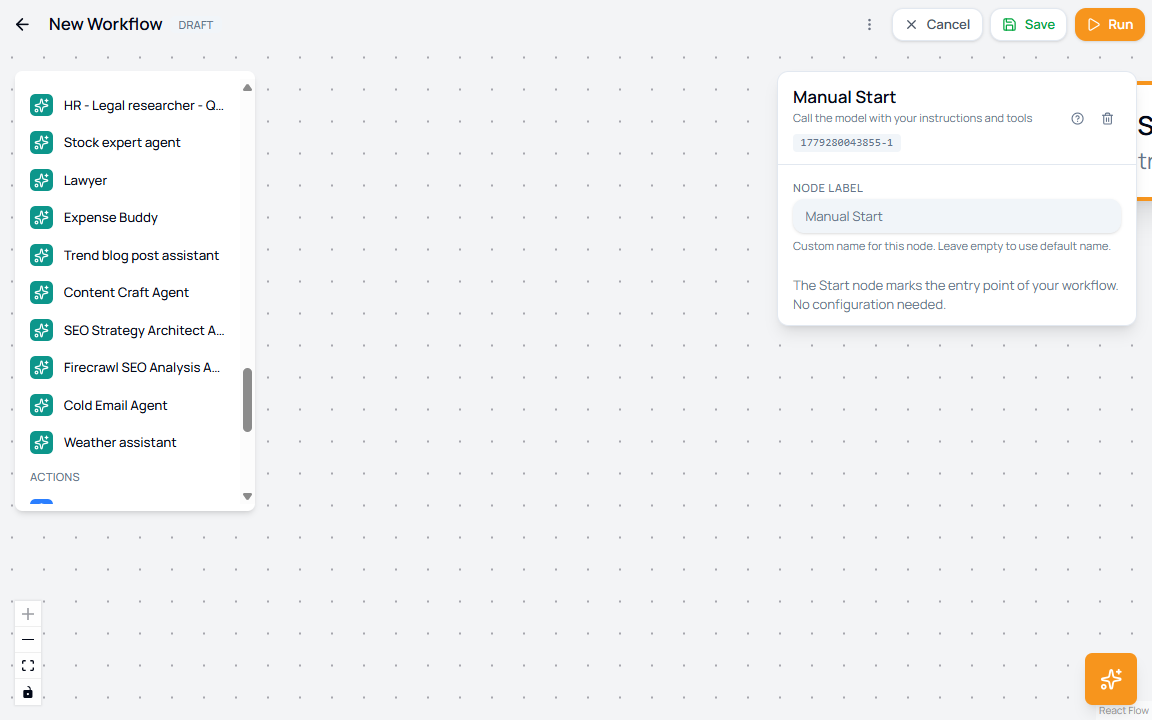
- Use the config panel to edit the node label and node-specific settings.
- Insert previous outputs in supported fields with the plus control beside dynamic inputs.
- Connect the node output to the next step.
Referencing previous outputs
| Location | How to reference earlier data |
|---|---|
| Dynamic text fields | Use the insert control beside the field when available. |
| JavaScript code | Read inputs as input1, input2, and later numbered inputs. Return the value that should flow to the next node. |
| Python code | Read inputs or numbered variables such as input1 and input2. |
| Web Scrape URL | Use $input1, $input2, and similar placeholders in the URL. |
| Conditional node | Write a JavaScript expression that evaluates the previous input, such as input1.status === 'approved'. |
Node selection checklist
| Need | Start with |
|---|---|
| Full AI reasoning with system instructions | Agent |
| Reuse a configured production agent | Published Agent |
| Plain text transformation | Prompt |
| API integration | HTTP Request |
| Workspace app integration | App Action |
| Deterministic data transformation | JavaScript or Python |
| Branching or merging paths | Conditional logic |
| Scheduled, webhook, or app-event start | Triggers |