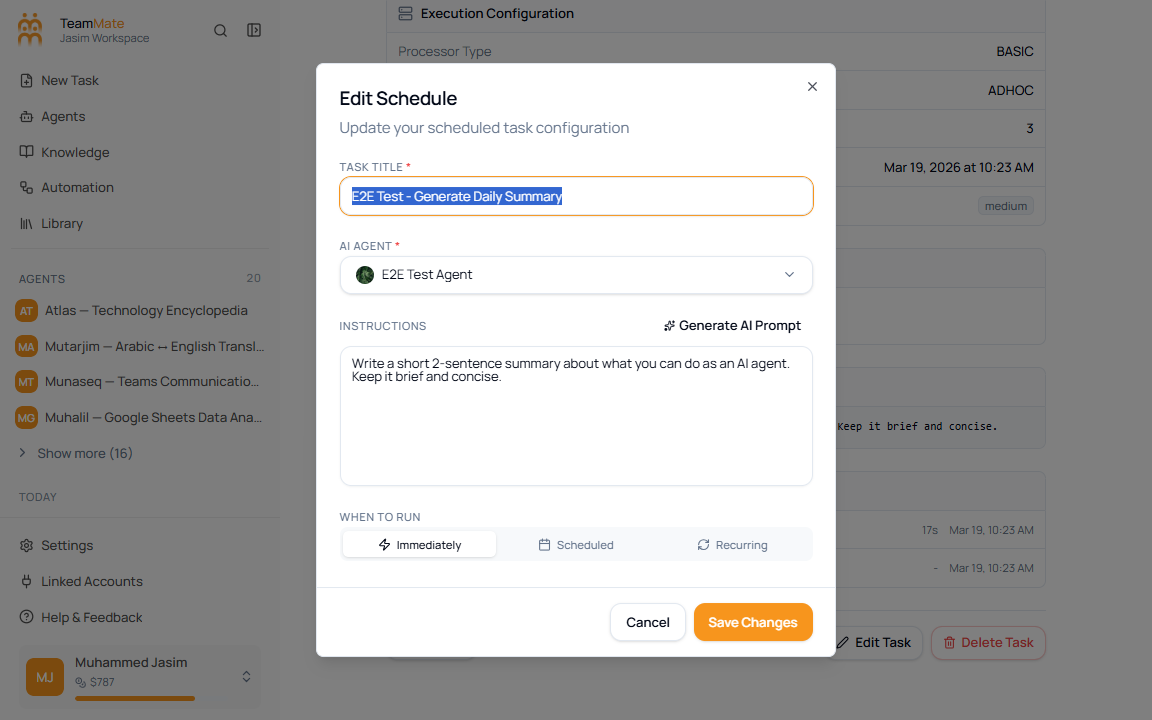
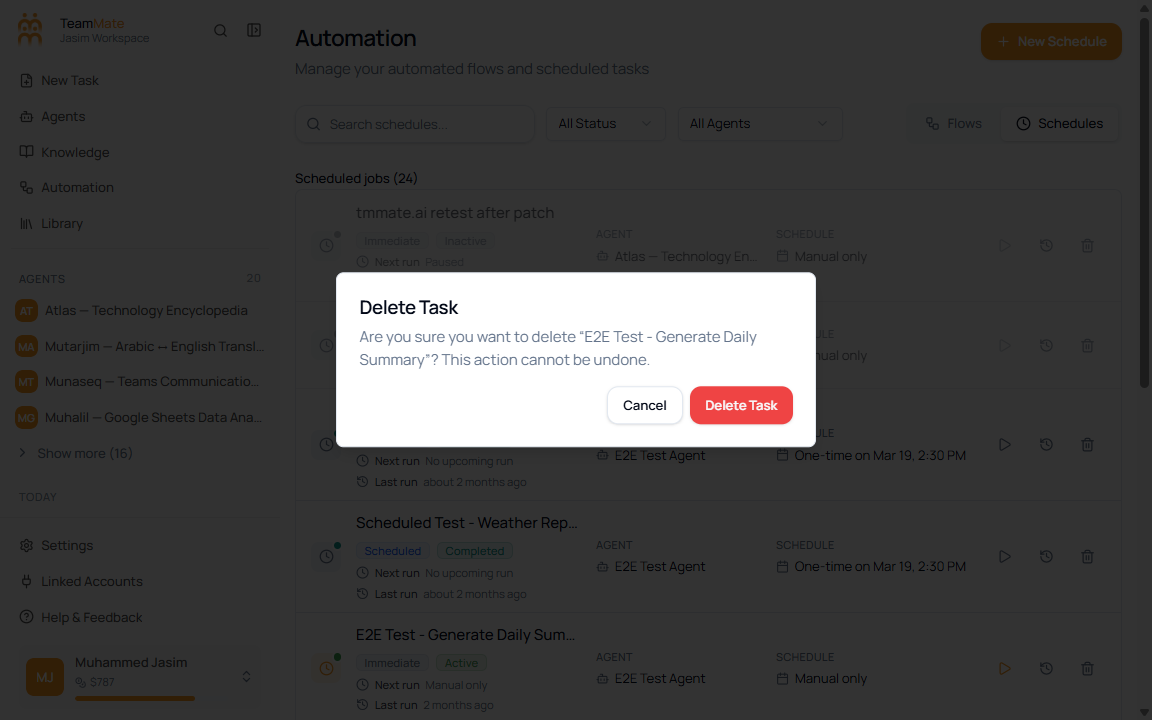
Schedules
Schedules are automation jobs that run an agent immediately, once at a chosen time, or on a recurring cadence. In the app, they live under Automation on the Schedules tab.
What you can do here
- Search scheduled jobs by title.
- Filter schedules by status or assigned agent.
- Create an immediate, one-time scheduled, or recurring schedule.
- Run a schedule manually when it is active.
- Review execution history in a side sheet.
- Open the schedule detail page, edit the schedule, or delete it after confirmation.
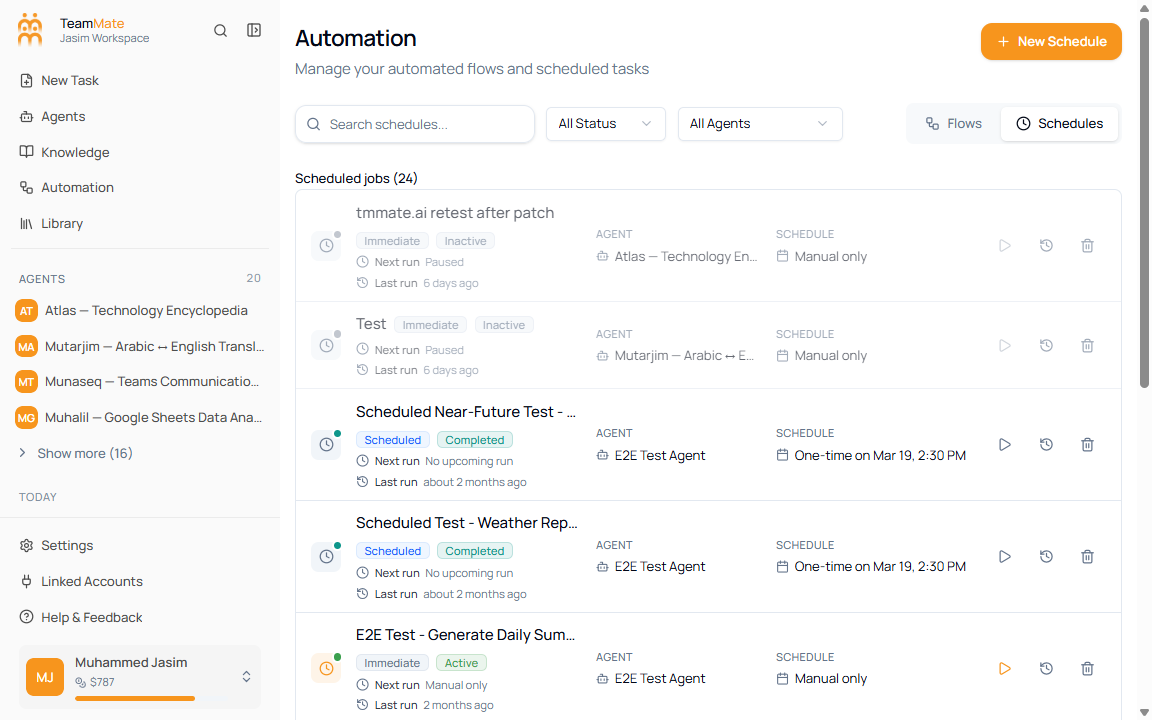
List controls
| Control | Options | What it changes |
|---|---|---|
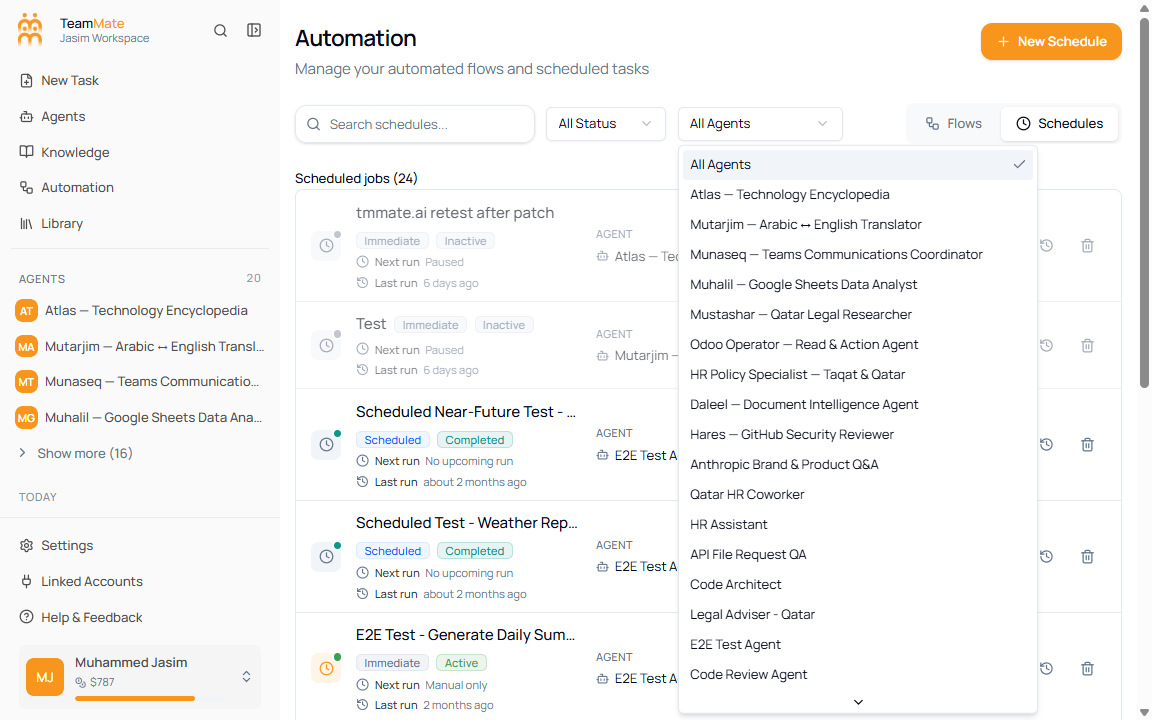
| Search schedules | Free text | Narrows the list by schedule name. |
| Status filter | All Status, Active, Pending, Paused | Shows schedules with the selected status. |
| Agent filter | All Agents or one workspace agent | Shows schedules assigned to the selected agent. |
| New Schedule | Button | Opens the schedule creation dialog. |
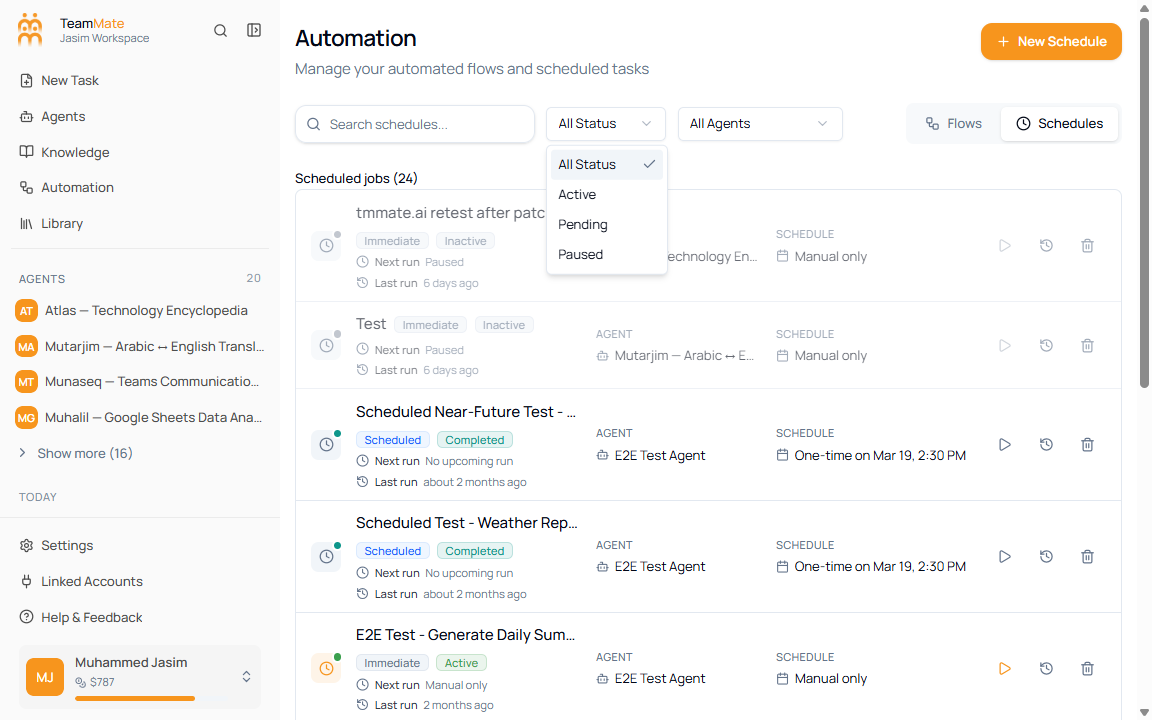
Schedule rows
| Row area | What it shows |
|---|---|
| Title | The schedule name and execution type badge. |
| Status | Current state, such as Active, Pending, or Paused. |
| Next Run | When the schedule is expected to run next. |
| Last Run | Most recent run time, when available. |
| Agent | The agent assigned to execute the schedule. |
| Schedule | The human-readable timing rule. |
| Actions | Run, execution history, and delete controls. |
Click a row to open the schedule detail page.
How to create a schedule
- Open Automation from the sidebar.
- Click the Schedules tab.
- Click New Schedule.
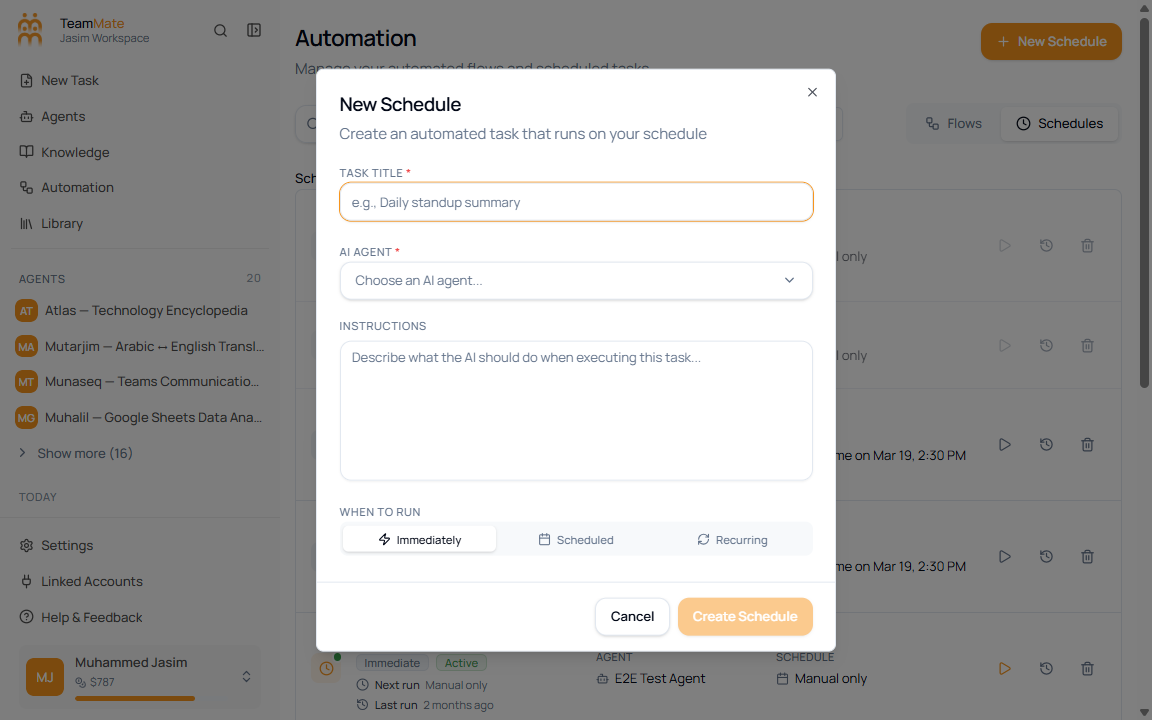
- Enter Task Title.
- Select an AI Agent.
- Add Instructions for the agent.
- Choose When to Run.
- Fill in the timing fields required for that run type.
- Click Create Schedule.
| Field | Required | What it controls |
|---|---|---|
| Task Title | Yes | Names the scheduled job in the Schedules list. |
| AI Agent | Yes | Chooses the agent that will perform the work. |
| Instructions | No | Tells the agent what to do when the schedule runs. |
| Generate AI Prompt | No | Drafts instructions after a title and agent are selected. |
| When to Run | Yes | Chooses Immediately, Scheduled, or Recurring. |
Agent picker
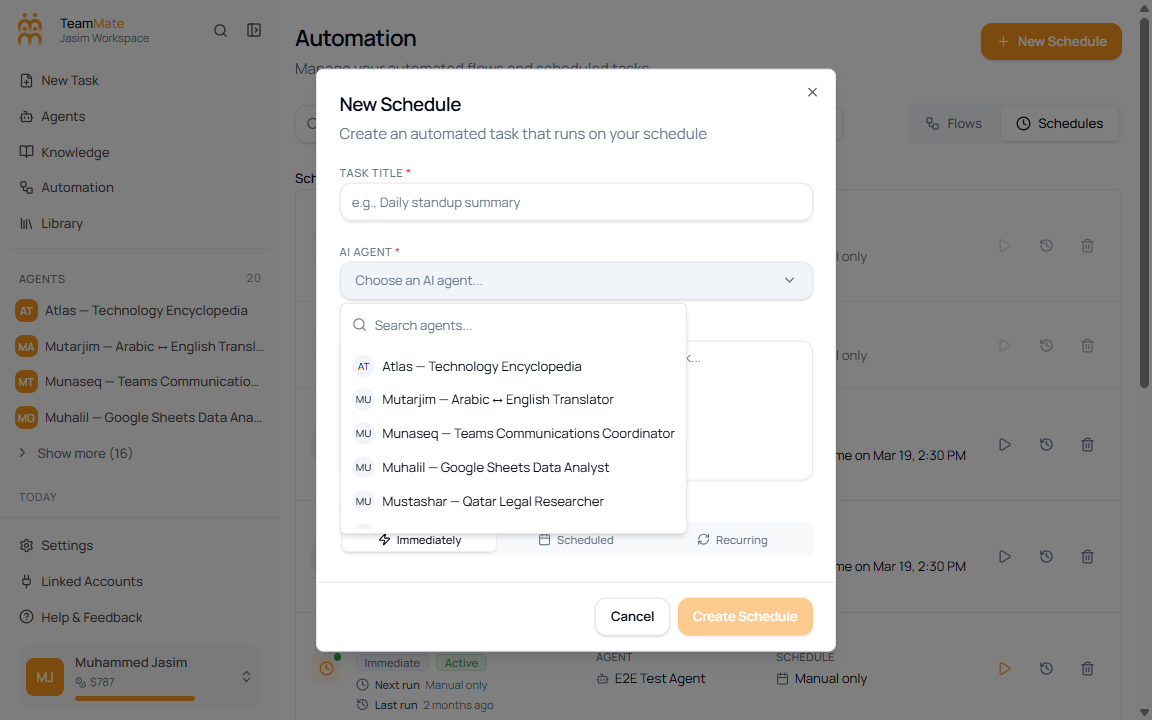
- Click AI Agent.
- Search or scroll through the available agents.
- Select the agent that should execute the schedule.
One-time scheduled run
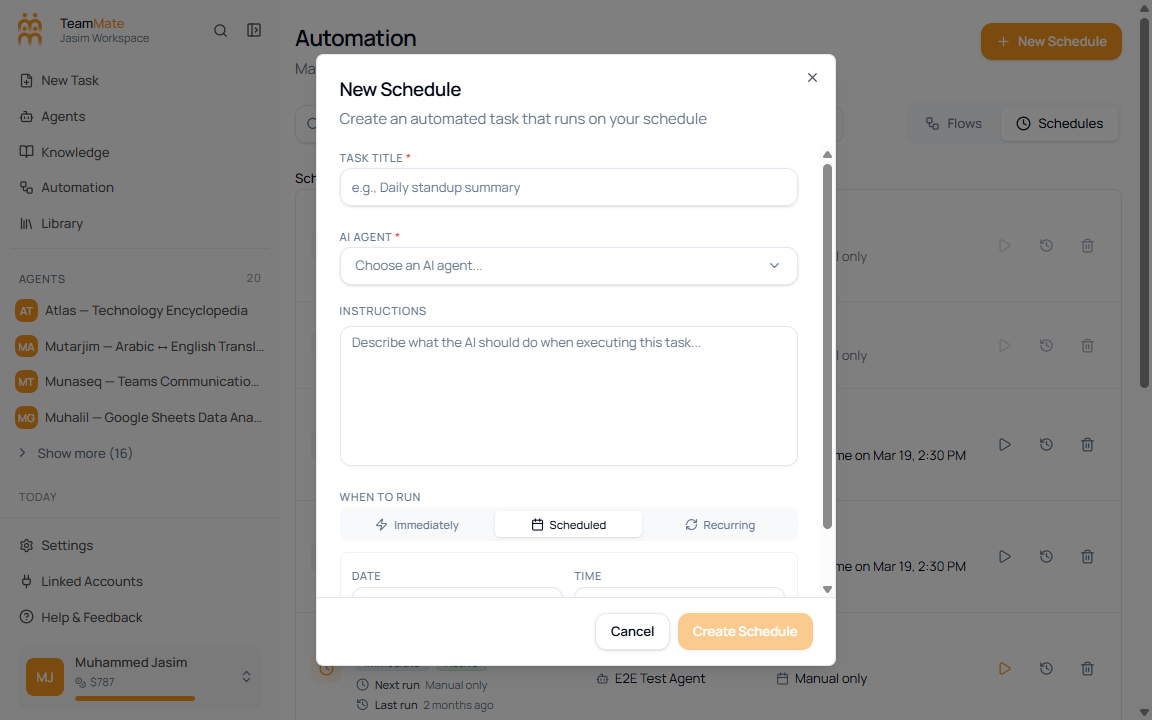
Choose Scheduled when the job should run once in the future.
| Field | Required | What it controls |
|---|---|---|
| Date | Yes | The calendar date for the one-time run. |
| Time | Yes | The local time for the one-time run. |
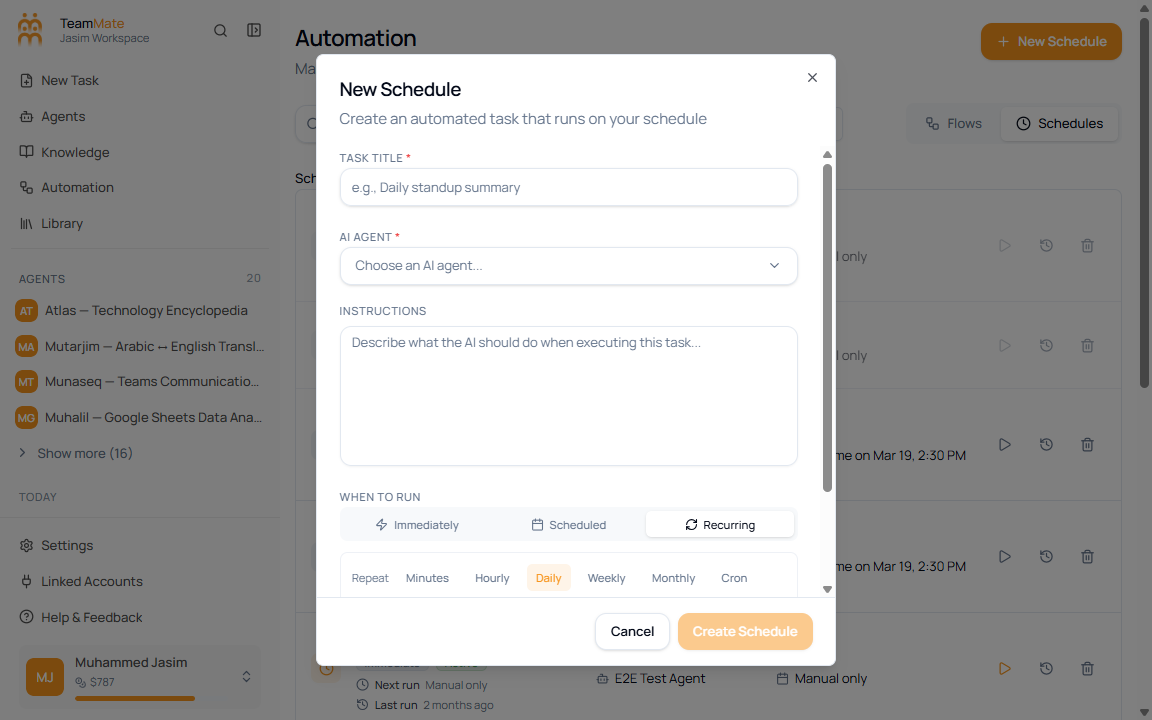
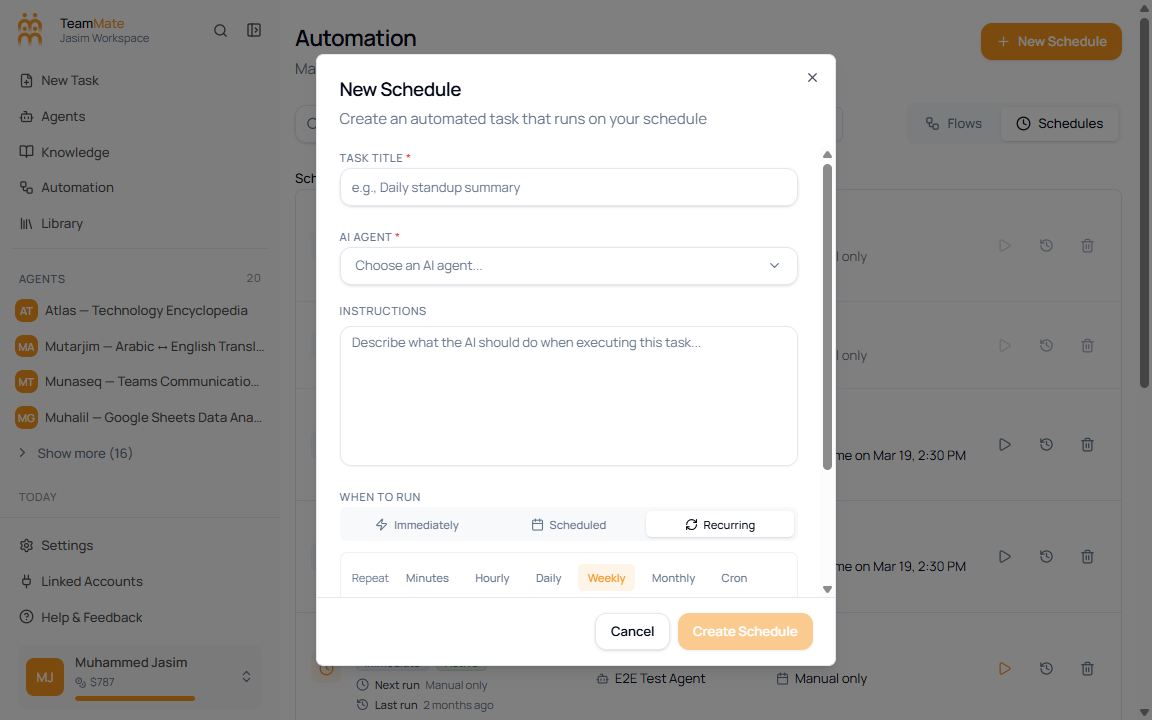
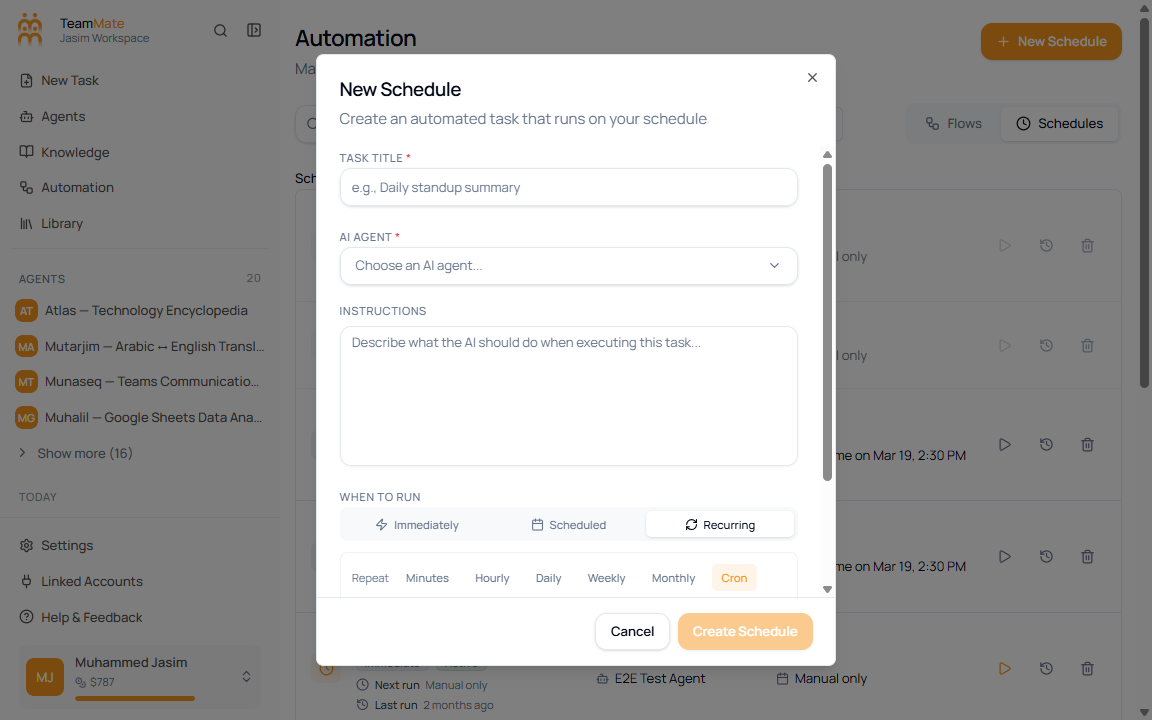
Recurring run
Choose Recurring when the job should repeat.
| Field | Options | What it controls |
|---|---|---|
| Frequency | Minutes, Hourly, Daily, Weekly, Monthly, Cron | The cadence used for repeated runs. |
| Interval | Number input | How often the cadence repeats. |
| Time | Time input | The run time for daily, weekly, and monthly schedules. |
| Weekday | Sun through Sat | The day used by weekly schedules. |
| Cron | Cron expression | A custom schedule expression. |
| Ends | Never, After N runs, On date | When the recurring schedule stops. |
| Occurrences | Number input | The run count used by After N runs. |
| End date | Date picker | The stop date used by On date. |
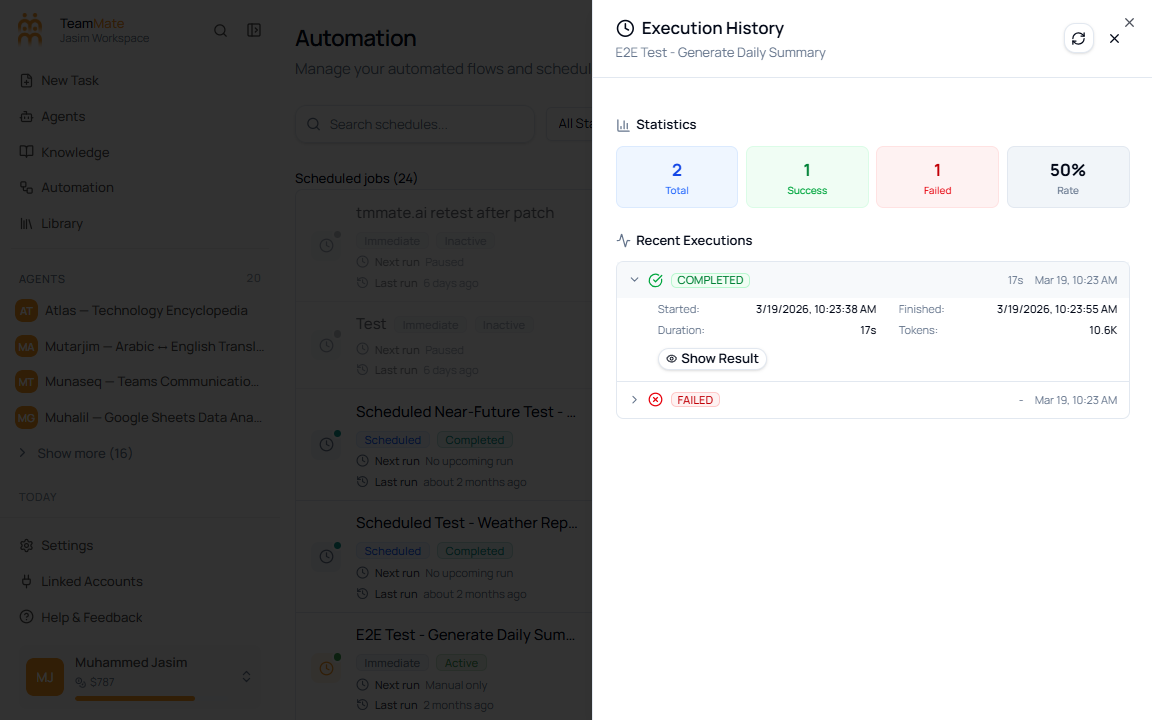
Execution history
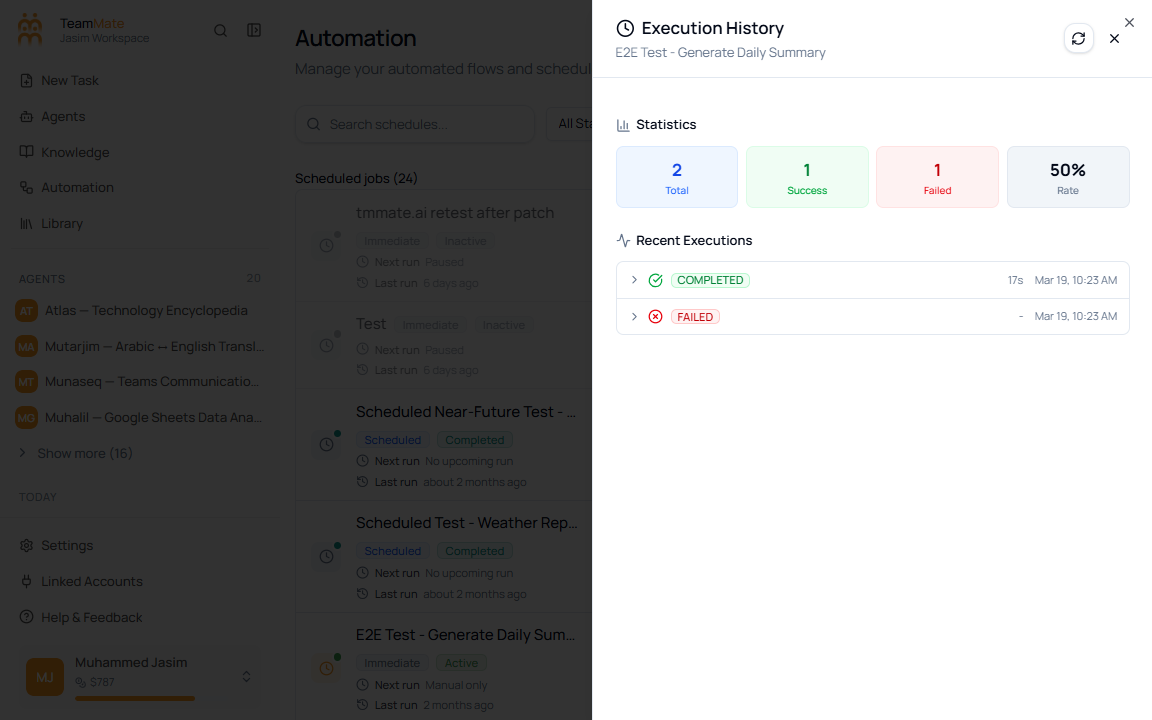
- Click the history action on a schedule row.
- Review total executions, successful executions, failed executions, and success rate.
- Expand a run to see timing, token usage, result, logs, and errors when available.
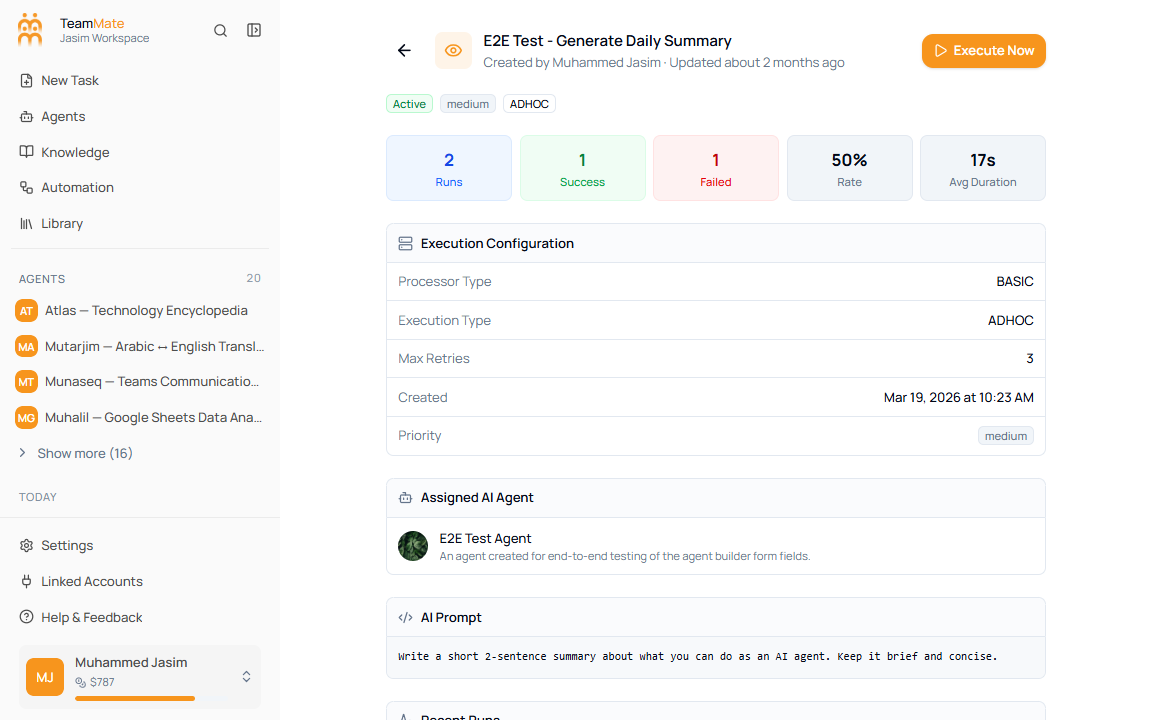
Schedule detail page
Open a schedule row when you need the full record. The detail page shows the creator, update time, status, priority, execution type, run statistics, execution configuration, assigned AI agent, AI prompt, and recent runs.
Edit or delete a schedule
Use Edit Task on the detail page to reopen the schedule dialog with the current values. Use the row delete action or detail page delete action only when the schedule and its history should be removed.