Quick start (5 min)
By the end of this page you’ll have a TeamMate account, a workspace, and you’ll have used a built-in specialist to answer something useful. Five steps. Five minutes. No setup beyond a browser.
If you want the long, careful version with every variation explained, read Getting started instead.
Step 1 — Sign up
- Open https://store.no-downtime.com in your browser.
- Click Sign up at the bottom of the page.
- Enter your full name, work email, and a password (8+ characters). Click Sign up.
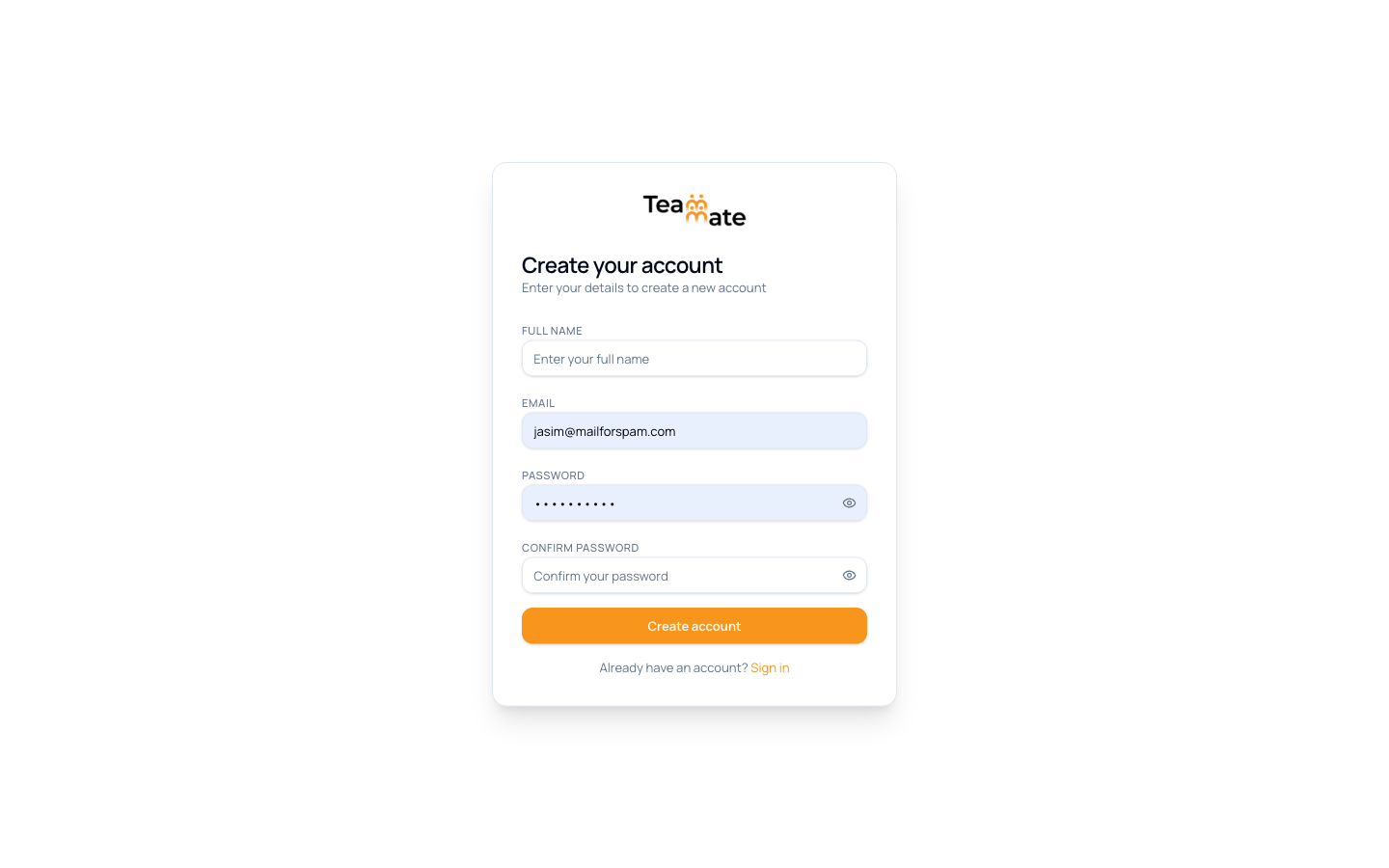
If you get a verification email, click the link inside it. Most workspaces let you skip this step.
Step 2 — Land in your new workspace
You’re dropped straight onto the main chat screen with the heading “What can I do for you?”
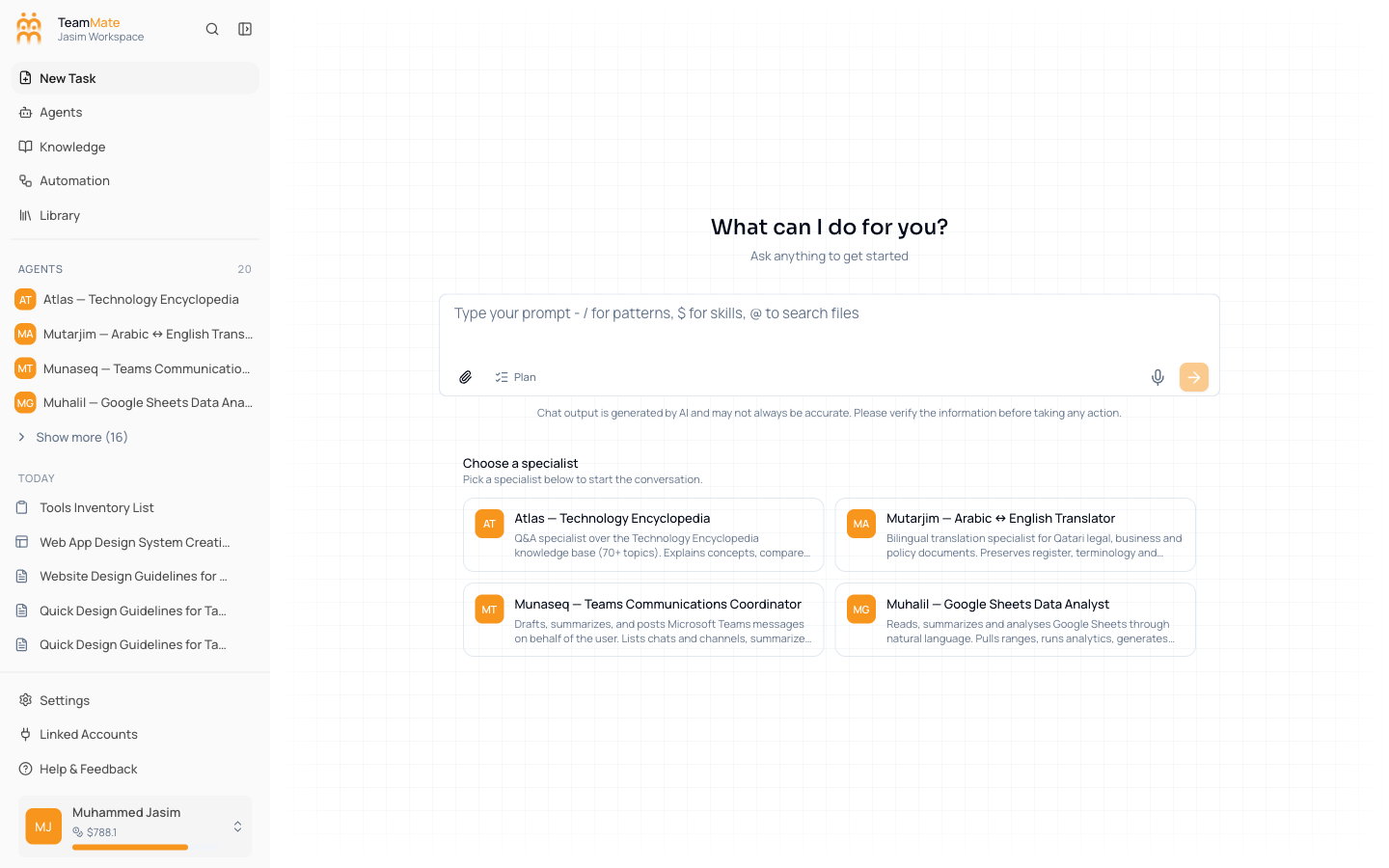
Three things to notice:
- Sidebar (left) — your navigation: New Task (open chat), Agents, Knowledge, Automation, Library.
- Composer (middle) — where you type messages.
- Specialist cards (below) — built-in agents ready to use.
Step 3 — Pick a specialist (or skip it)
You can either click a card to use a specific specialist, or type without picking one — the built-in general assistant will route the message.
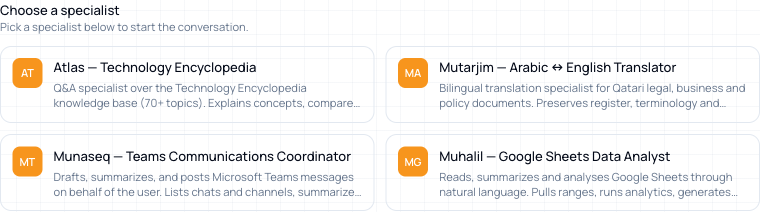
For this quick start, pick Atlas — Technology Encyclopedia (or any card that looks interesting). The card highlights to show your choice.
Step 4 — Send your first message
- Click inside the composer.
- Type a real question. For Atlas:
Explain what a vector database is and when I'd use one. - Press Enter or click the orange send arrow on the right.
The agent shows a small “thinking…” indicator, then streams the answer back word by word.
Step 5 — Read, follow up, and explore
Once the reply finishes:
- Notice the chat now appears in the sidebar under Today with an auto-generated title.
- Send a follow-up:
Can you give me one concrete example from a HR Q&A use case? - Watch how the second reply builds on the first.
That’s the whole loop: pick a specialist, ask, refine, save.
You’re up and running
In 5 minutes you’ve done what most people take a 30-minute demo to see:
- Created a workspace.
- Picked a specialist.
- Had a useful conversation.
The workspace is yours from here. Conversations save automatically. You can invite the rest of your team in Tutorial 3, build your own specialists in Tutorial 4, and start automating in Tutorial 5.
Where to next
- Learn the building blocks → How it works
- Build your own specialist → Your first agent
- See real workflows → Guides
- Look up a feature → Chat, Agents, Knowledge bases