Organize & edit
Use the Knowledge Base list and detail page to keep source records understandable and current.
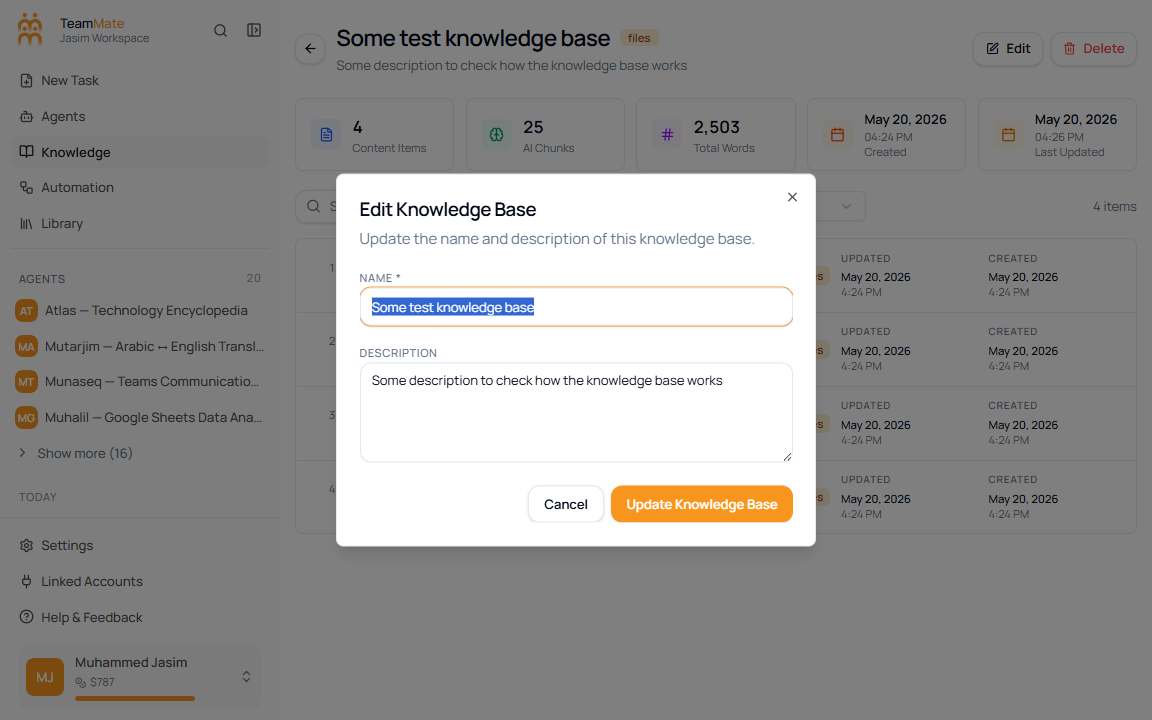
Edit name and description
- Find the knowledge base in grid view, list view, or the detail page.
- Click the edit icon or Edit.
- Update Name and Description.
- Click Update Knowledge Base.
The current edit dialog is metadata-only. It does not change the source type from text to file or website.
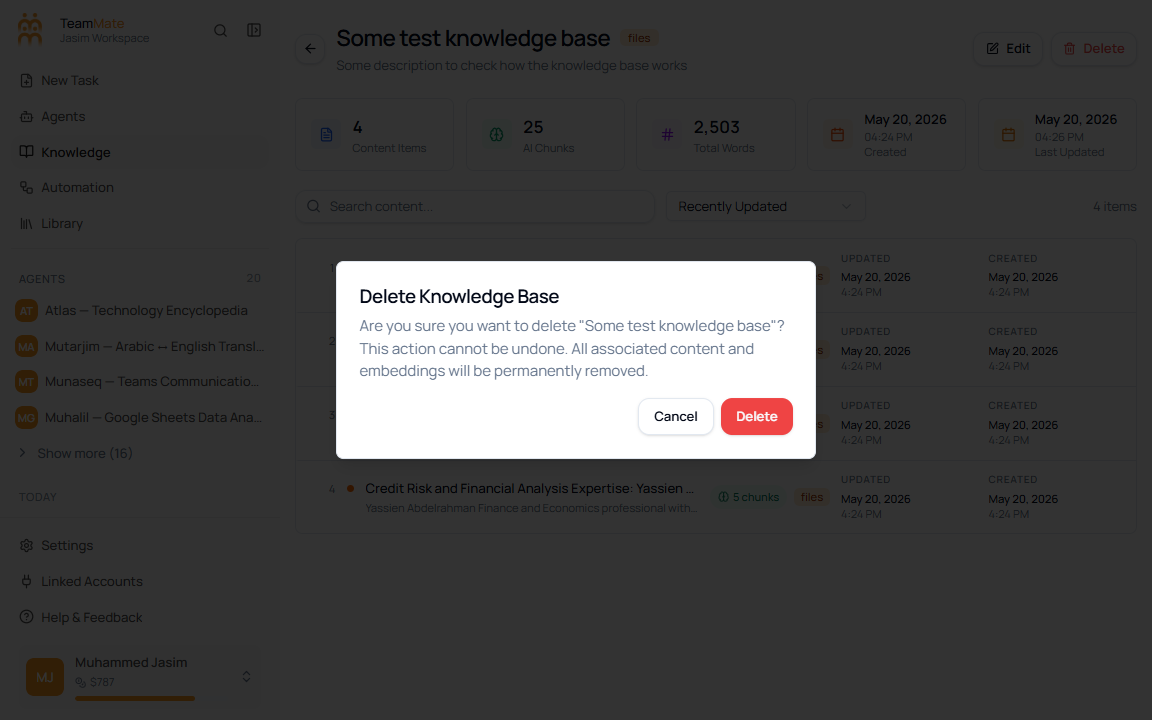
Delete a knowledge base
Click the delete icon in the list or Delete on the detail page. The confirmation dialog explains that the knowledge base, associated content, and embeddings will be permanently removed.
Maintenance guidance
- Use clear names that match how agents should use the source, such as “HR Handbook” or “Product Specs”.
- Add descriptions that explain the source authority and intended use.
- Open View Details after upload or web import to confirm content items and chunk totals.
- Delete stale sources only after checking whether an agent still uses them.