Library
The Library is the workspace-wide artifact browser. Use it to find deliverables created in chats without remembering which conversation produced them.
What you can do here
- Search artifacts by title.
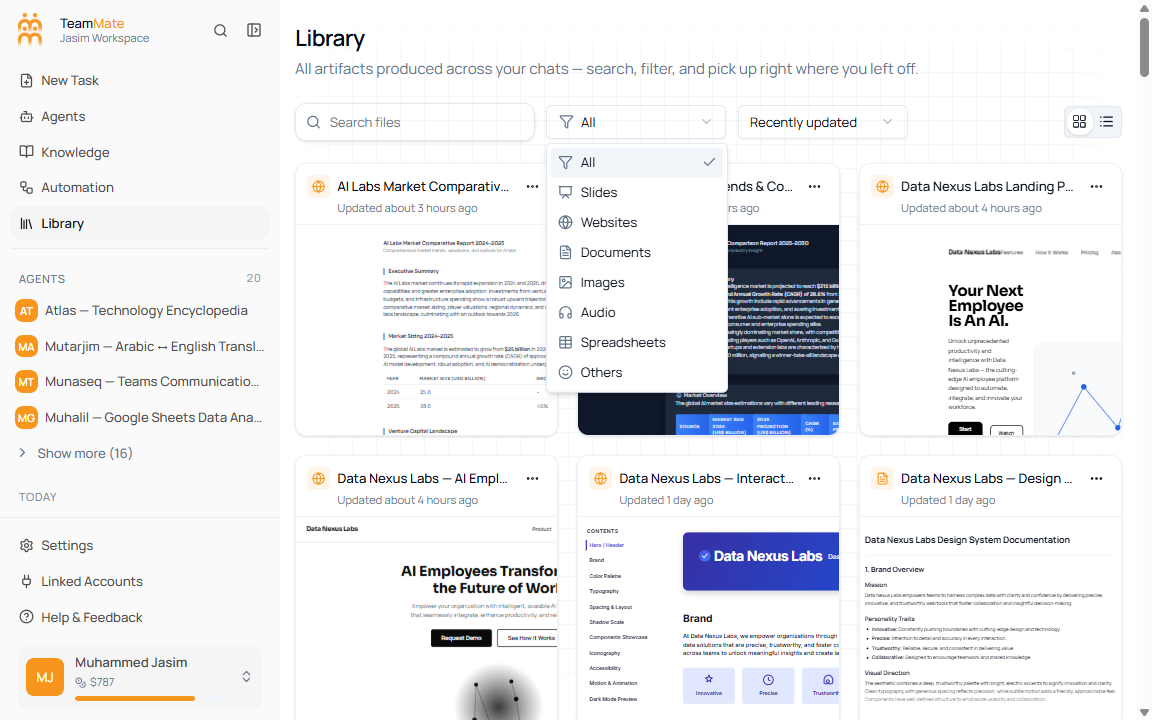
- Filter artifacts by file type.
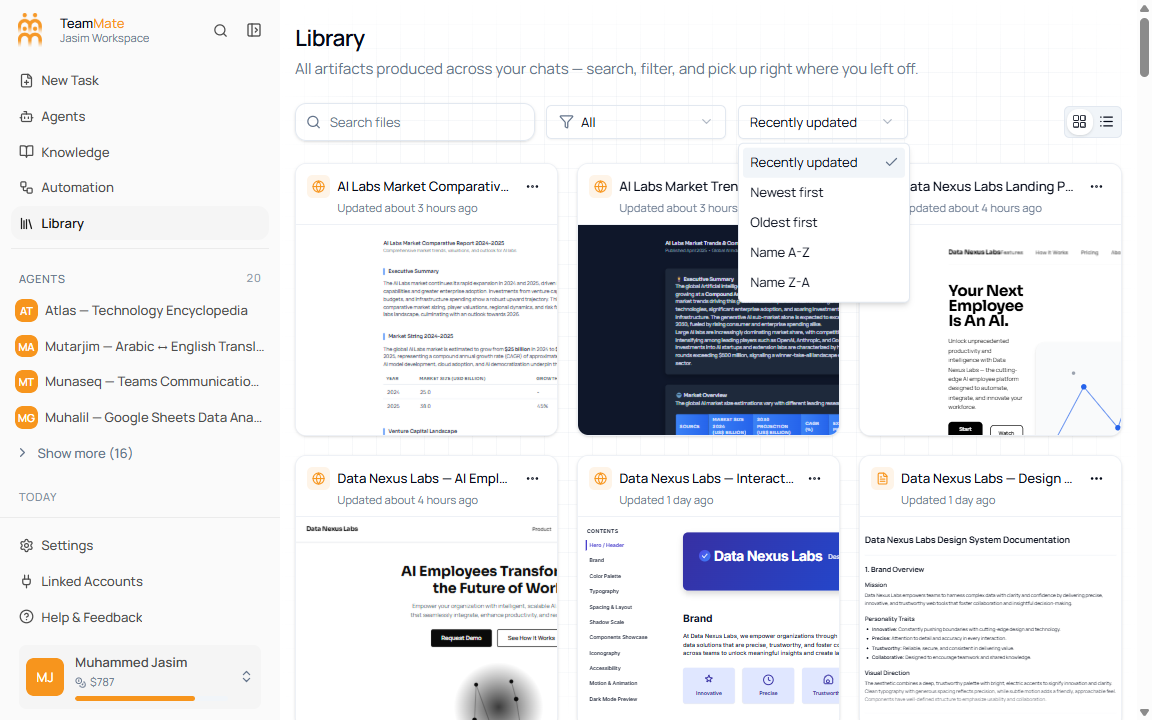
- Sort artifacts by update time, creation time, or name.
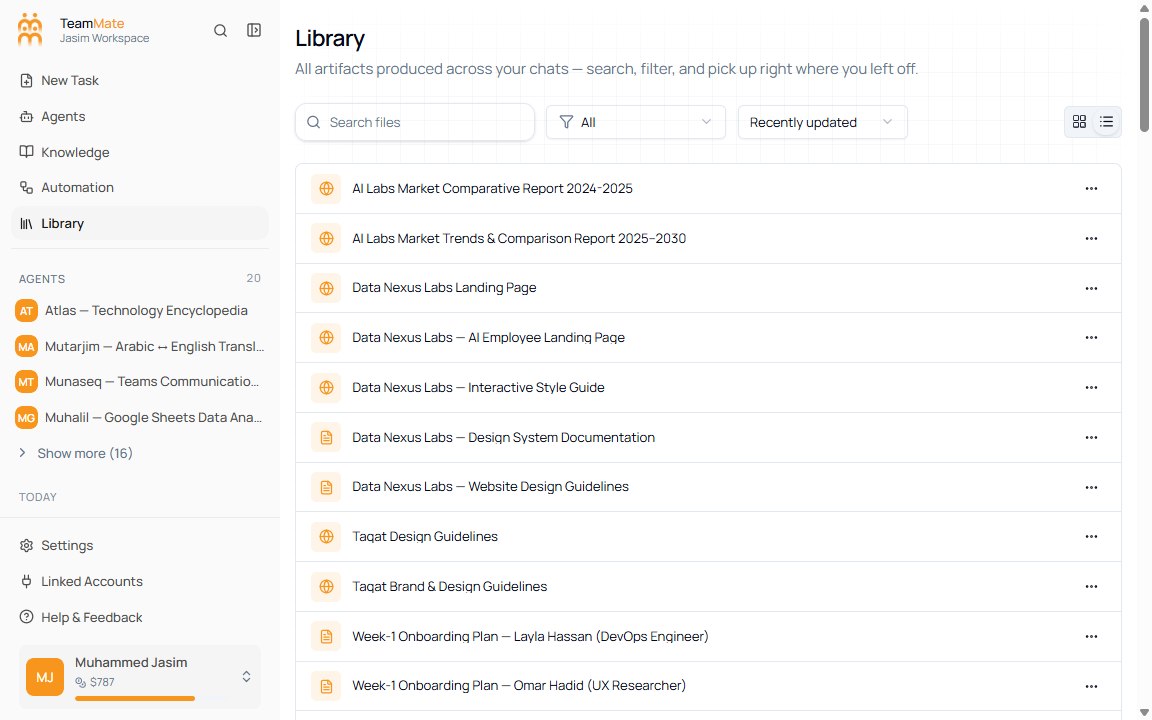
- Switch between grid and list views.
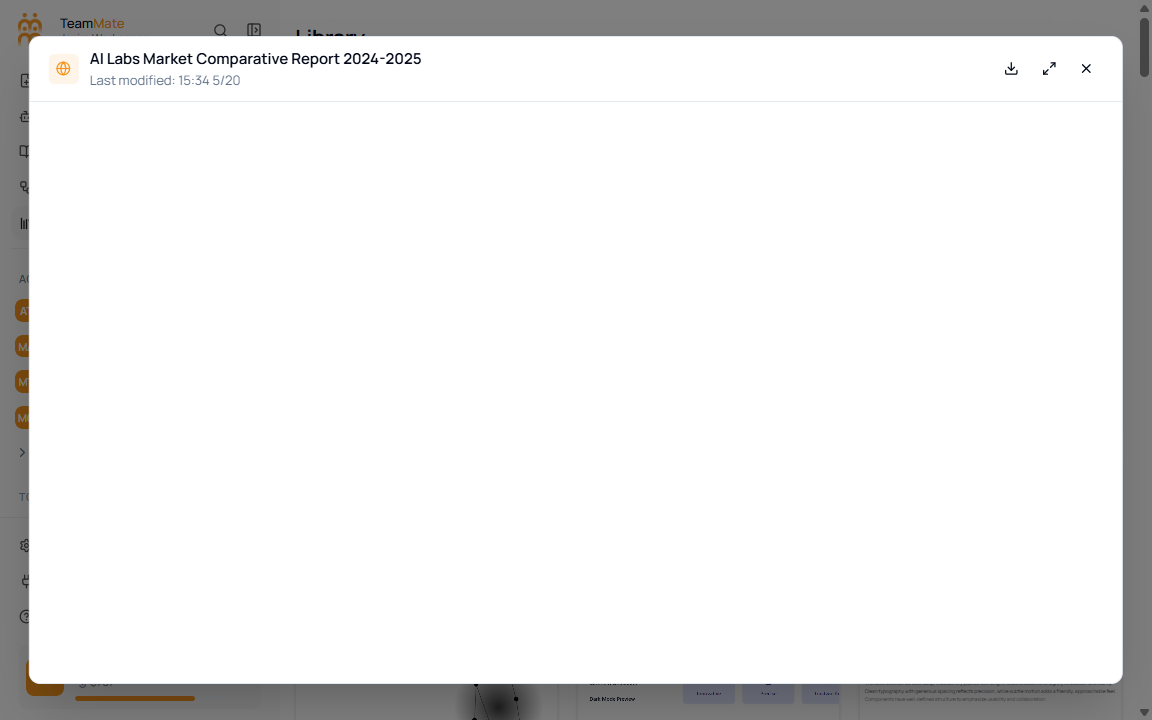
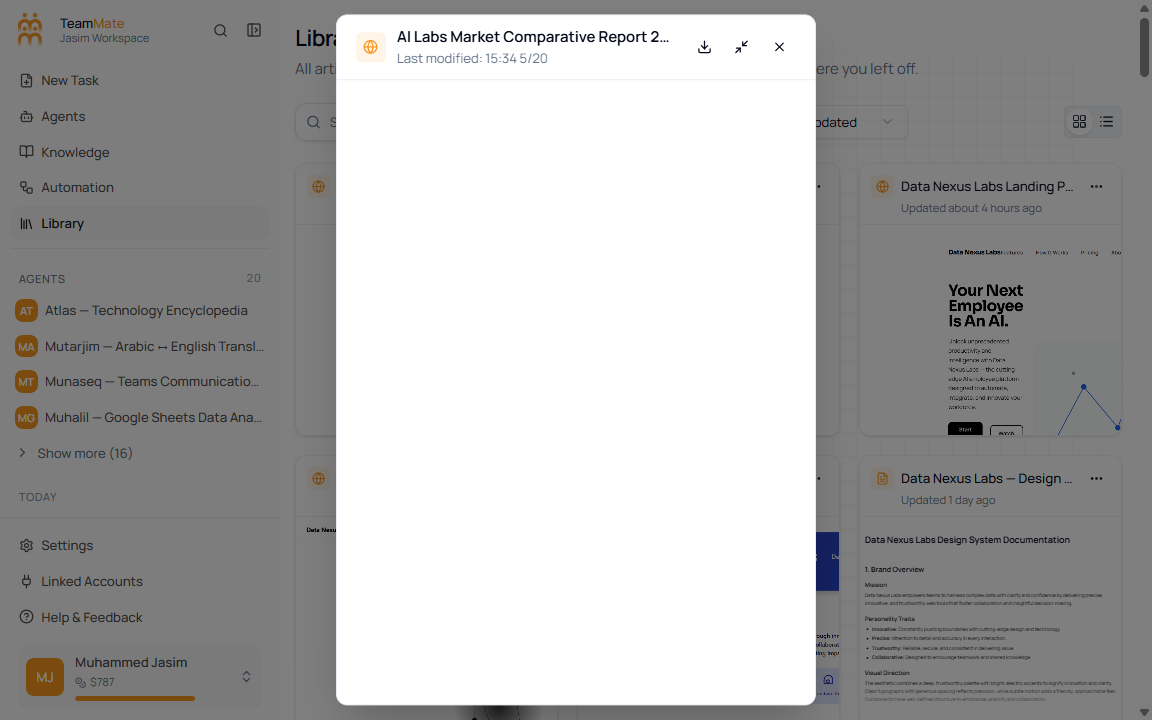
- Preview an artifact in a full-screen dialog.
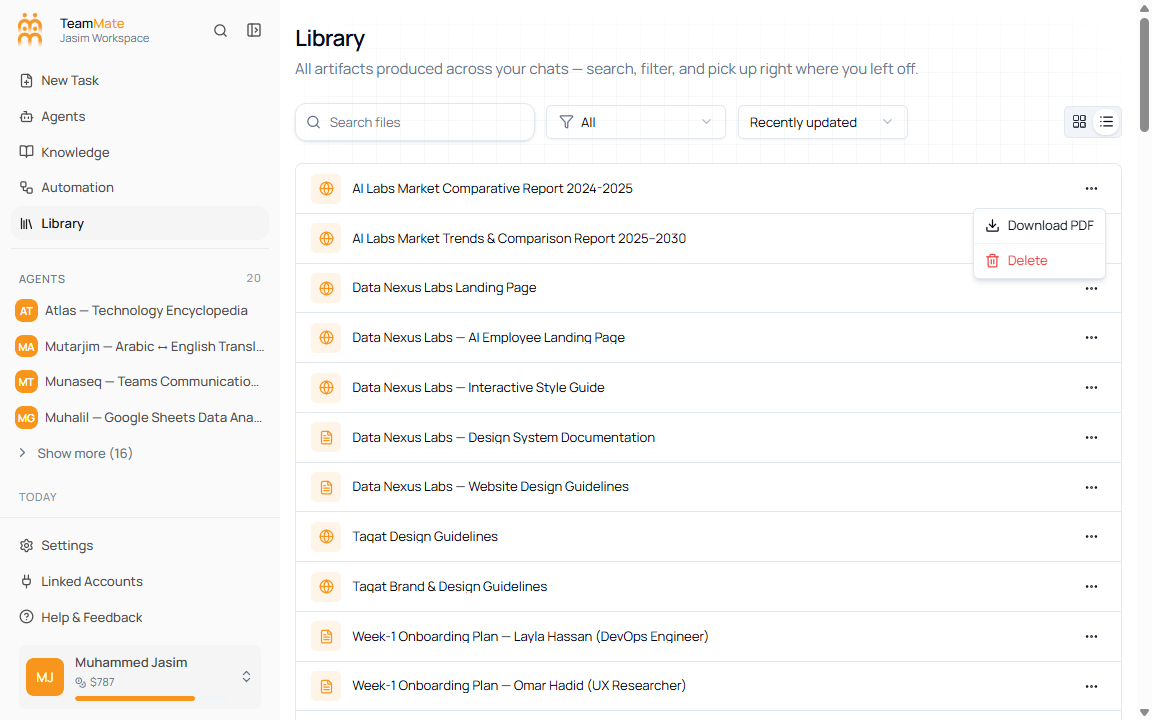
- Download an artifact as a PDF.
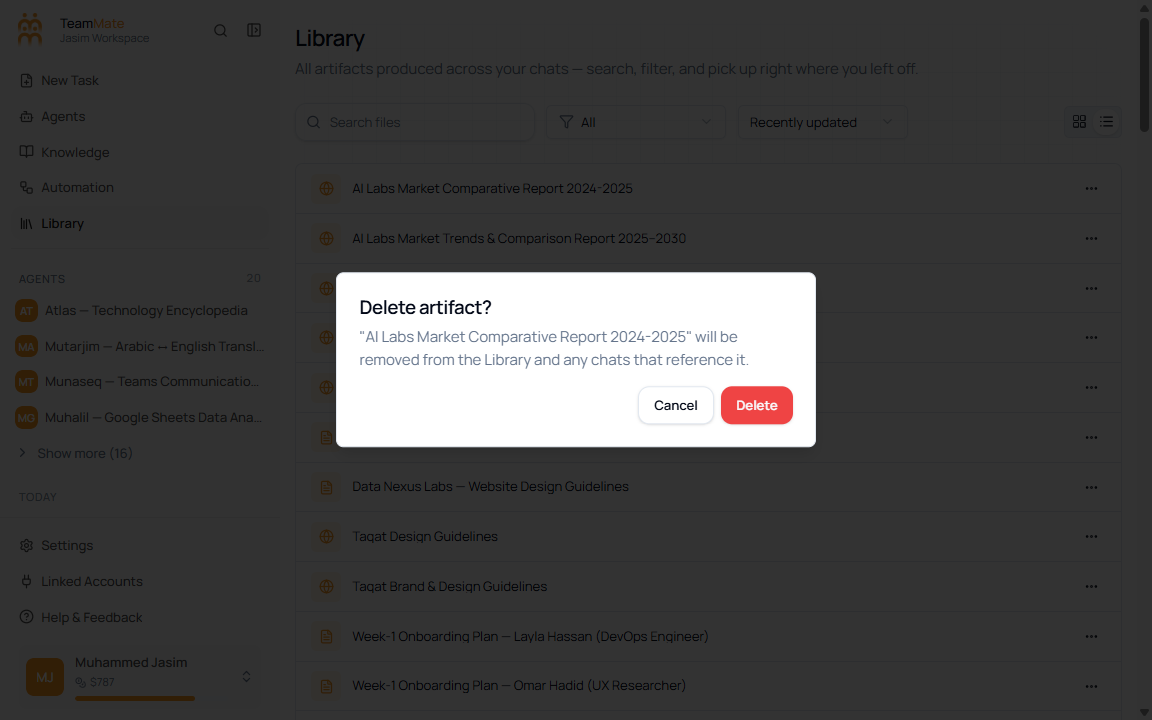
- Delete an artifact after confirmation.
Toolbar
| Control | Options | What it changes |
|---|---|---|
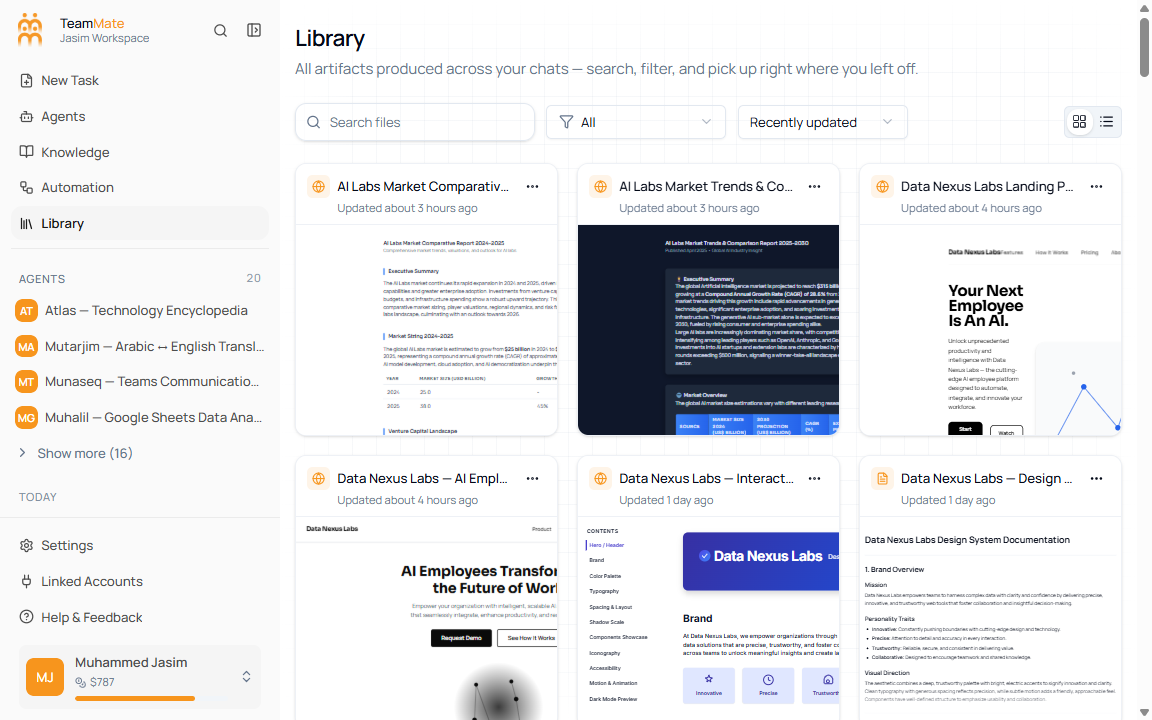
| Search files | Free text | Filters artifacts after a short delay. |
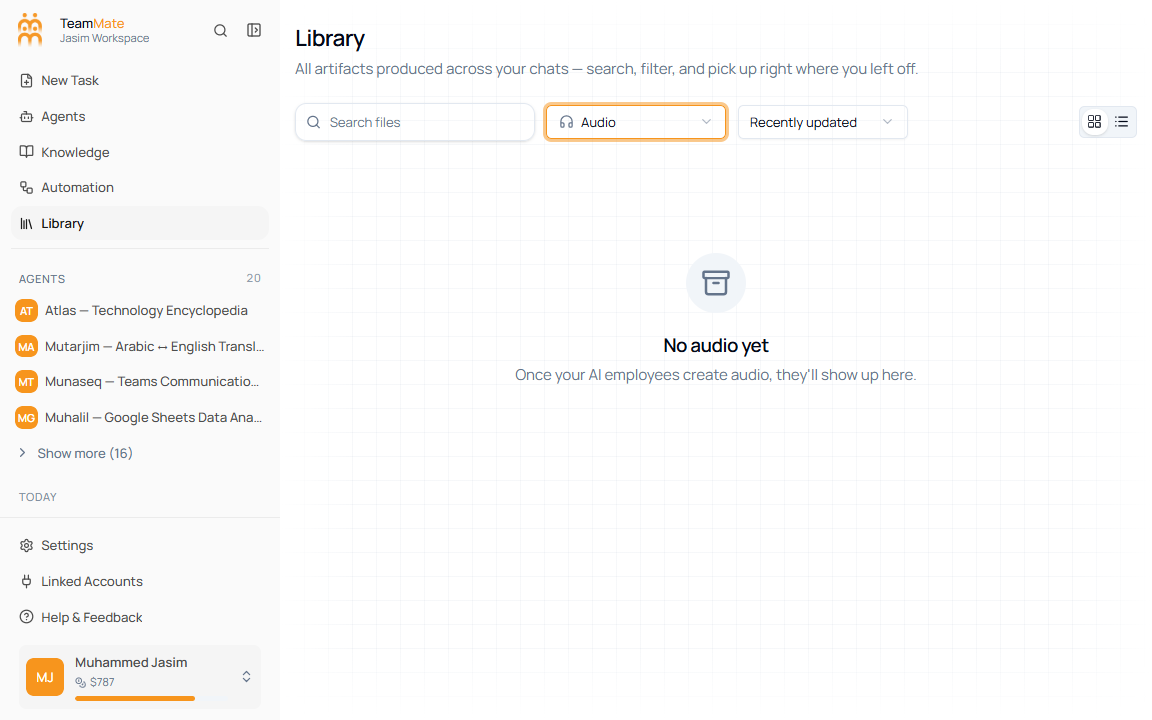
| File type | All, Slides, Websites, Documents, Images, Audio, Spreadsheets, Others | Narrows the list by artifact kind. Audio and Others currently show placeholder empty states when there is no supported artifact kind. |
| Sort by | Recently updated, Newest first, Oldest first, Name A-Z, Name Z-A | Changes artifact ordering. |
| Grid view | Icon button | Shows visual artifact cards. |
| List view | Icon button | Shows compact rows. |
Grid and list views
Grid view shows a visual preview for each artifact. List view is better when you want to scan titles quickly.
| Artifact kind | Preview behavior |
|---|---|
| Document | Renders Markdown content. |
| Website | Renders HTML in a sandboxed preview. |
| Presentation | Renders slide content in a preview frame. |
| Image | Shows the image on a checkered background for transparent assets. |
| Spreadsheet | Shows a compact table preview. |
Item actions
- Open the More actions menu on an artifact card or row.
- Click Download PDF to export the artifact.
- Click Delete only when the artifact should be removed.
- Confirm deletion in the dialog, or click Cancel to keep the artifact.
Preview an artifact
- Click an artifact card or row.
- Review the title, last modified time, and rendered content.
- Use Download to export it.
- Use Maximize when the artifact needs more room.
- Close the dialog when you are done.
Empty states
| Empty state | Why it appears | What to do |
|---|---|---|
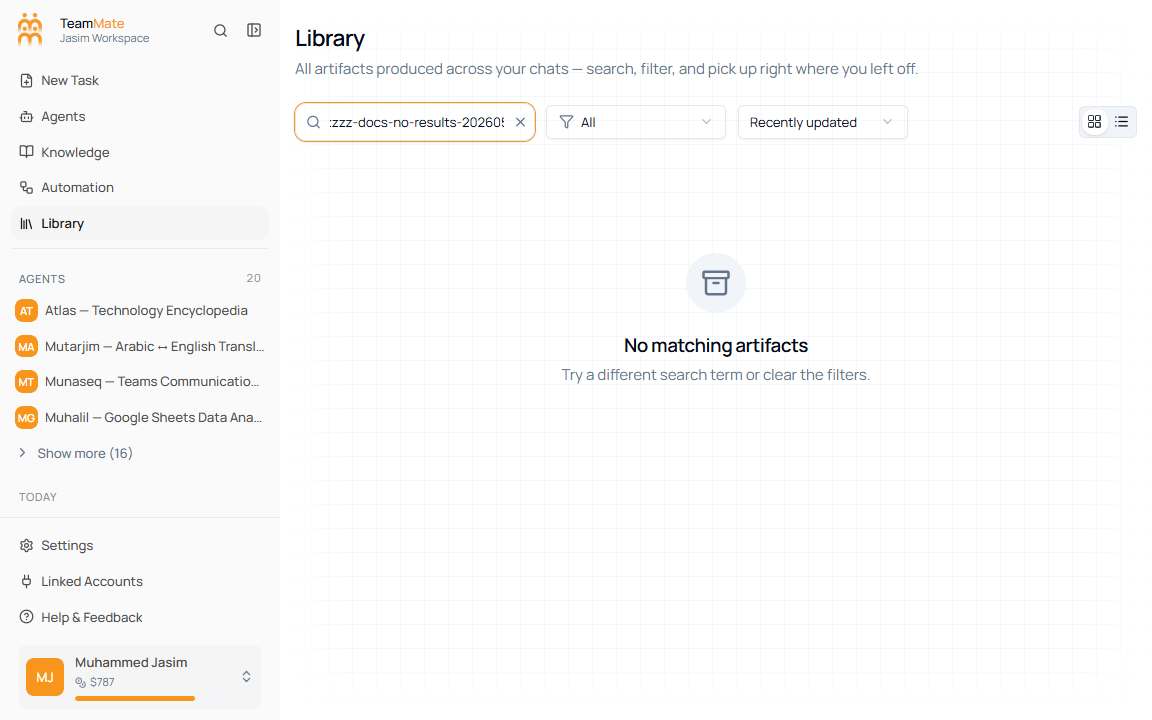
| No matching artifacts | Search text or filters do not match any artifact. | Clear search or choose a different filter. |
| No audio yet | The selected placeholder bucket has no artifacts. | Pick another file type or create that artifact type later when supported. |
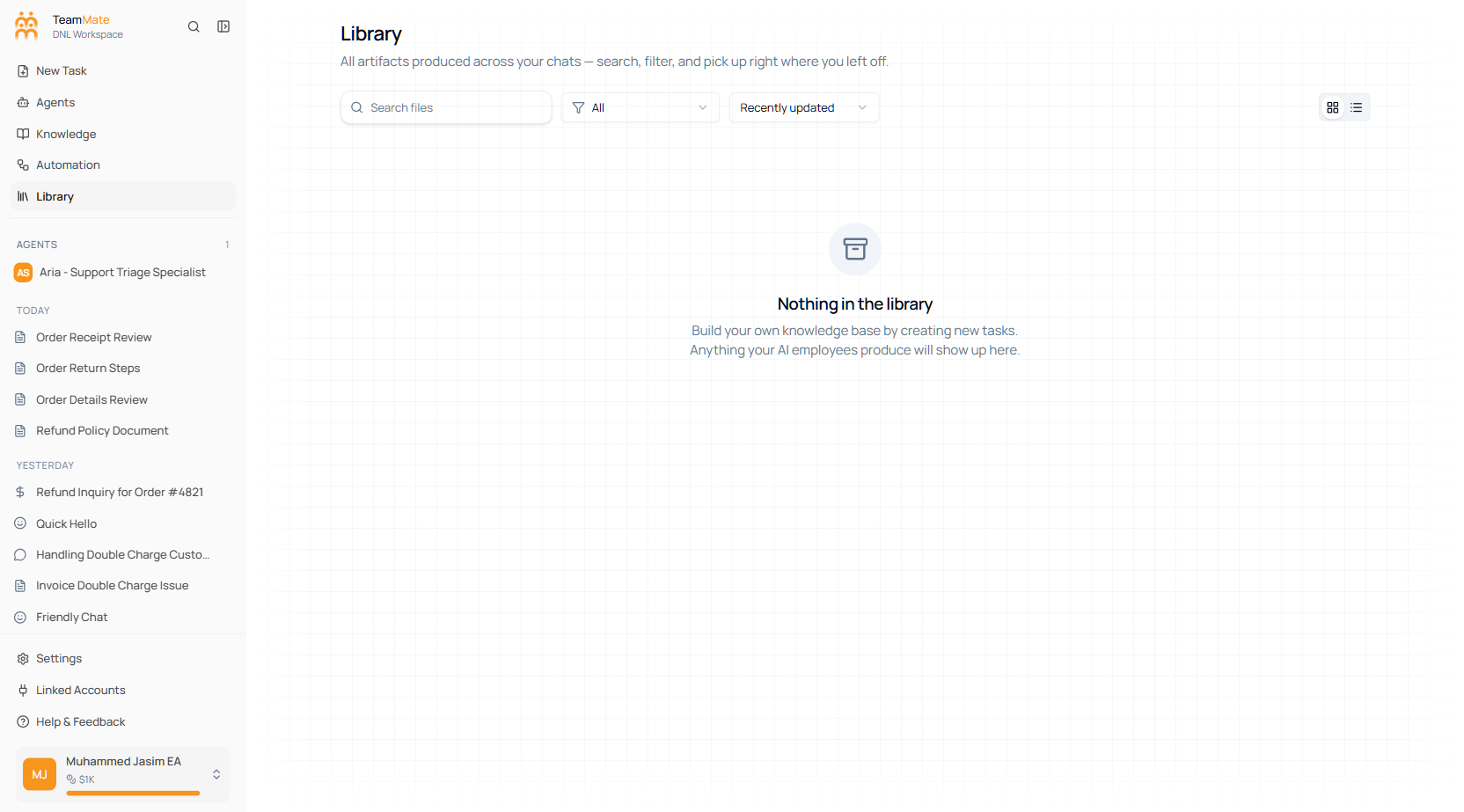
| Nothing in the library | The workspace has no artifacts yet. | Create tasks or chat outputs that produce artifacts. |