Execution history
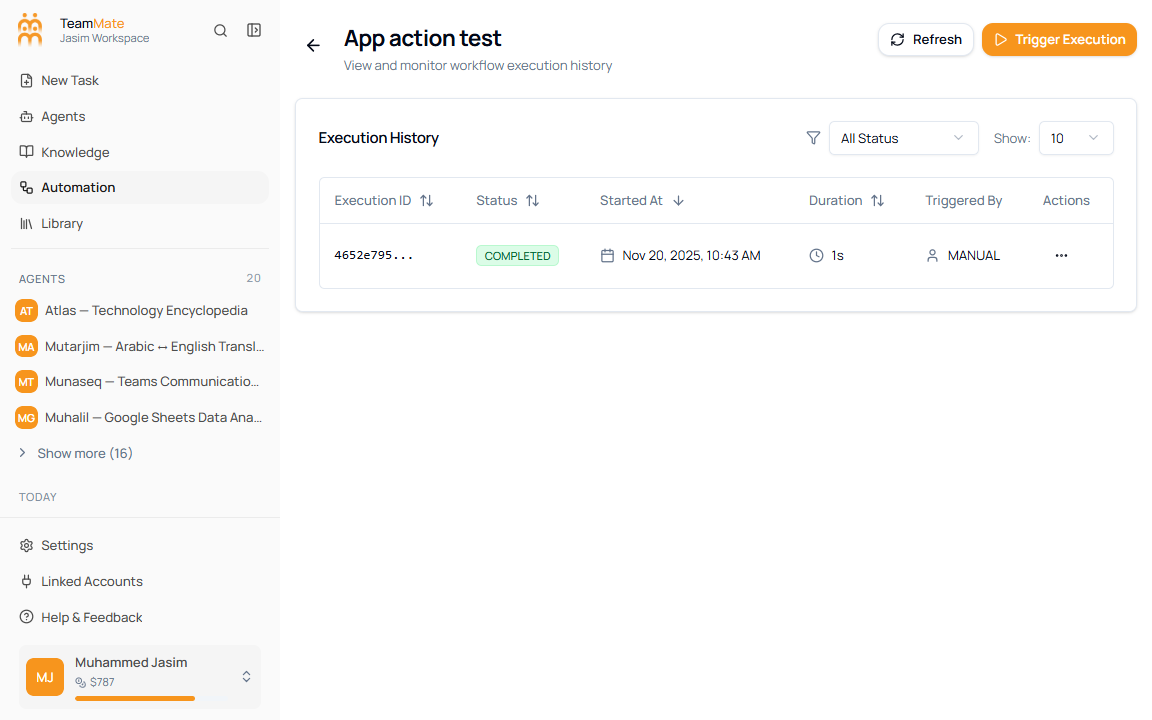
Execution history shows every recorded run for one workflow. Use it to confirm whether a run completed, see when it started, and open step-level details for debugging.
What you can do here
- Refresh the execution table.
- Trigger a manual execution for the current workflow.
- Filter executions by status.
- Change how many rows are shown.
- Sort by execution ID, status, started time, and duration.
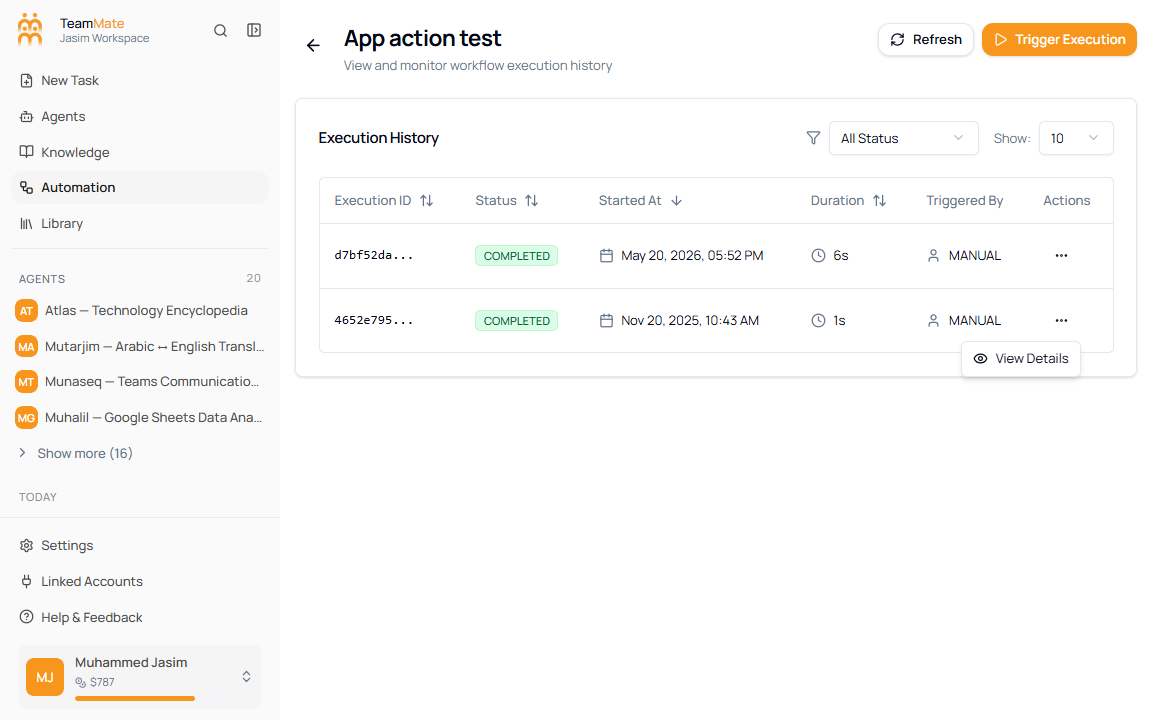
- Open an execution’s actions menu.
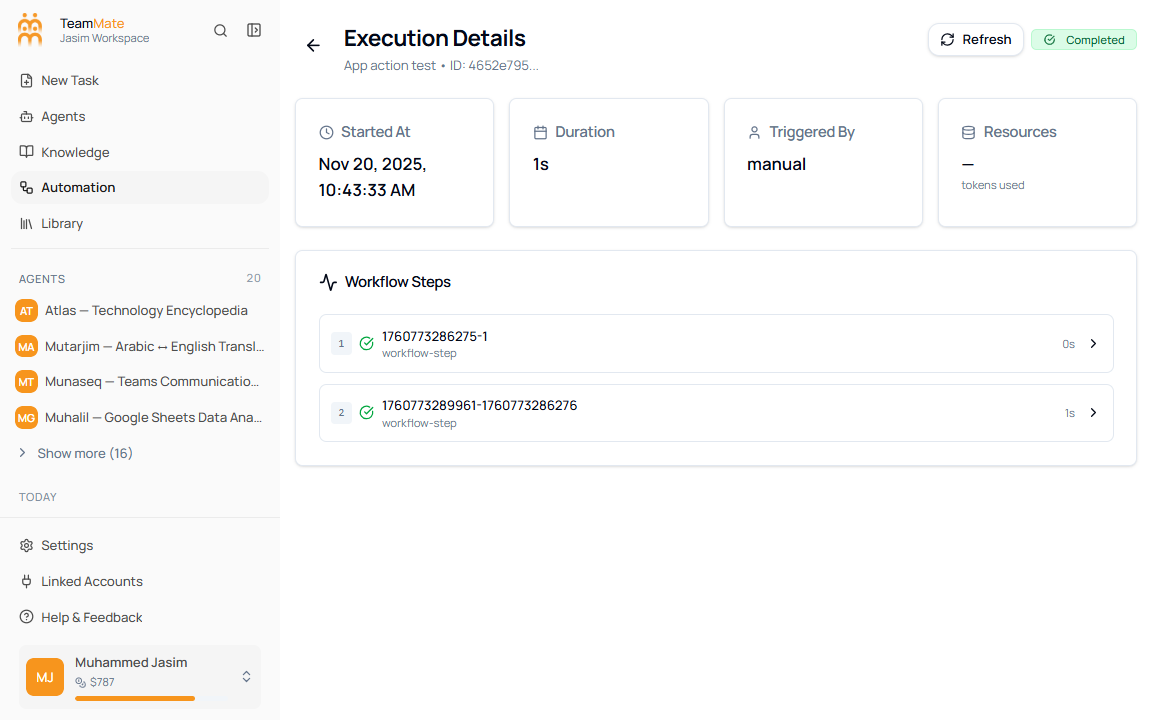
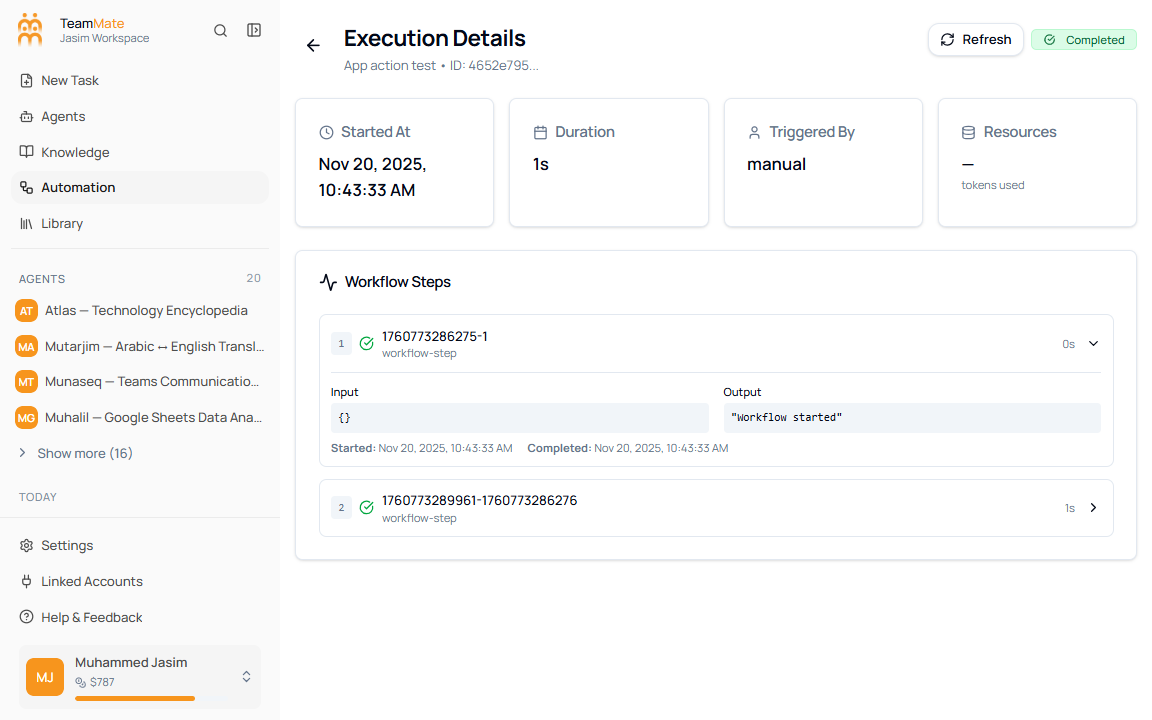
- View execution details and expand each workflow step.
How to open execution history
- Open Automation Flows.
- Find the flow you want to inspect.
- Click the execution history action on the flow row or card.
- Use Back to Workflows to return to the Flows tab.
Execution table
| Column | What it shows |
|---|---|
| Execution ID | A shortened ID for the run. Open details to see the full record. |
| Status | The run state, such as COMPLETED. |
| Started At | Date and time when the run started. |
| Duration | Total runtime for the execution. |
| Triggered By | The source of the run, such as MANUAL. |
| Actions | Opens the per-run menu. |
Filters and table controls
| Control | Options | What it changes |
|---|---|---|
| All Status | Execution status values returned by the app | Narrows the table to a single run status. |
| Show | Row counts such as 10 | Changes how many executions appear in the table. |
| Refresh | Button | Reloads the latest execution records. |
| Trigger Execution | Button | Starts a manual run of the current workflow. |
How to open execution details
- Click the actions button on an execution row.
- Click View Details.
- Review the summary cards and workflow steps.
Execution detail fields
| Field | What it means |
|---|---|
| Started At | When the run began. |
| Duration | Total time the execution took. |
| Triggered By | Whether the run was manual or started by another trigger. |
| Resources | Resource usage reported by the execution, such as tokens when available. |
| Workflow Steps | Ordered steps from the run, each with timing and expandable detail. |
How to inspect a workflow step
- Open an execution detail page.
- Click a row in Workflow Steps.
- Compare Input and Output for that step.
- Check the started and completed timestamps below the step payloads.
Retention
Execution history stays with the workflow. Deleting a workflow also deletes its execution history, so use the delete confirmation carefully.