Your first conversation
By the end of this tutorial you’ll have sent a real message in TeamMate, received a reply, and you’ll understand how to either let the system route your message or pick a specific specialist yourself.
This is tutorial 2 of 4 in the Getting started series. It takes about 4 minutes.
Before you start
- You’ve completed Tutorial 1 — Create your account & workspace.
- You’re signed in and looking at the main chat screen (the one with “What can I do for you?” at the top).
If you closed the tab, open https://store.no-downtime.com again and sign in. TeamMate will drop you straight back on this screen.
Step 1 — Look at the screen
Take 30 seconds to spot the parts you’ll use.
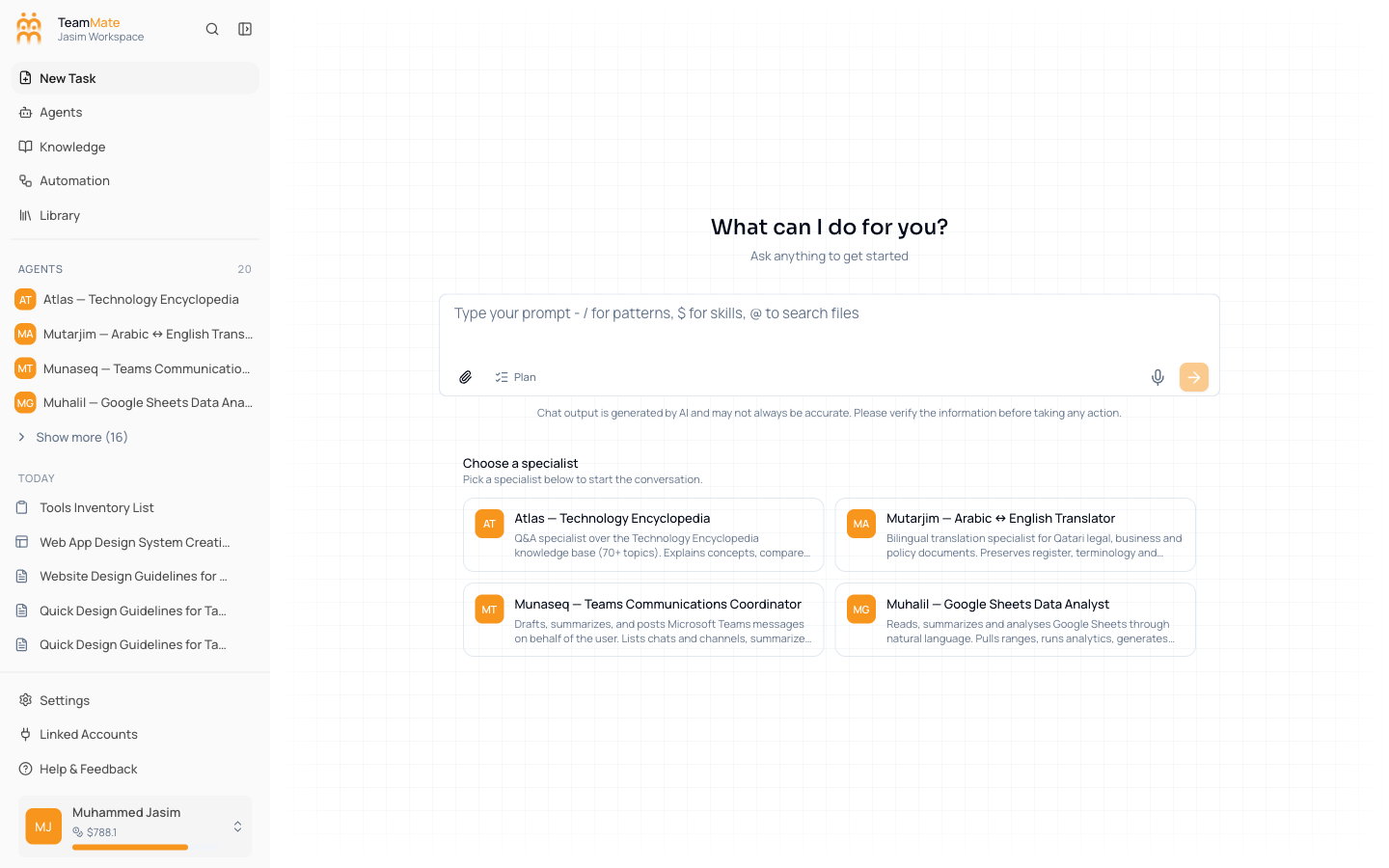
You’ll work with three things in this tutorial:
- The composer — the rounded box in the middle of the screen with the placeholder text “Type your prompt — / for patterns, $ for skills, @ to search files”.
- The send button — the arrow icon on the right side of the composer. It stays greyed-out until you start typing.
- The specialist cards — four buttons below the composer (Atlas, Mutarjim, Munaseq, Muhalil in the example screenshot; yours may differ). Each card represents a built-in agent good at a specific job.
There’s also a built-in general assistant available by default — when you send a message without picking a specialist card, the general assistant answers and routes the work behind the scenes.
Step 2 — Decide how to start
You have two ways to begin. Both work; pick whichever feels easier.
- Just type a question. If you’re not sure who would answer it best, the built-in general assistant will pick the right specialist for you behind the scenes.
- Click a specialist card first. If you already know your question is about, say, translating a document, you can click the Mutarjim — Arabic ↔ English Translator card and your message goes straight to that specialist.
For your first message, let’s try the simpler path: just type without picking a card.
Step 3 — Type your first message
-
Click anywhere inside the composer (the box with the placeholder text). The cursor will start blinking.
-
Type a short question. Real examples that work well:
What is in the company's annual leave policy?Summarise the latest Q3 product update for me.Translate "Welcome to our office" to Arabic.
Don’t worry about phrasing — write it like you’d ask a colleague in Slack.
-
Notice the send arrow on the right of the composer turns orange and clickable.
-
Click the orange send arrow, or press Enter on your keyboard.
Step 4 — Watch the reply arrive
TeamMate will:
- Save your message at the right side of the screen (you’ll see it in a grey bubble).
- Show a small “thinking…” indicator below it.
- Start streaming the reply, word by word.
- Show a finished reply once it’s done.
The whole thing usually takes a few seconds for a short question, longer for one that needs research.
While the reply is streaming you can scroll up and down freely — the live text won’t be lost.
Step 5 — Read the reply carefully
A few things to notice on a finished reply:
- The body text is the actual answer. It might include bullet points, code blocks, or links.
- The disclaimer below the composer (“Chat output is generated by AI and may not always be accurate. Please verify the information before taking any action.”) is a reminder. Treat replies like an assistant’s first draft — useful, but worth checking when the stakes are high.
- The chat title at the top-left is auto-generated from your first message. It’s also added to the Today section in the sidebar so you can come back to this chat tomorrow.
Step 6 — Send a follow-up
You’re in a conversation, not a single-shot question box. Try a follow-up that builds on the reply:
- Click back in the composer.
- Type something like
Can you make it shorter?orNow in bullet points please. - Send.
The new reply will use everything that came before as context. This is how you refine an answer — keep asking until it’s right.
Step 7 — Pick a specialist on your next chat
For your next question you might want a specific expert. Start a new chat first:
-
In the sidebar, click New Task at the top of the navigation list.
You’ll see the same empty chat screen again, with the specialist cards back below the composer.
-
Pick one of the cards. For example, click Mutarjim — Arabic ↔ English Translator if you want a translation; click Muhalil — Google Sheets Data Analyst if you want help with a spreadsheet.
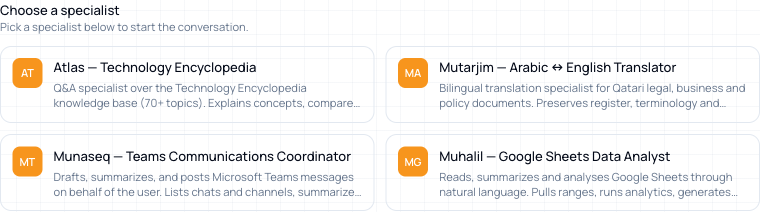
The card highlights to show your choice.
-
Type your question and send.
The conversation goes directly to that specialist, with its full instructions and any connected knowledge.
What you built
- One saved conversation in your workspace, visible under Today in the sidebar.
- A second conversation (if you did step 7), tied to a specific specialist.
- A feel for the difference between letting the general assistant route your message and picking a specialist yourself.
When to pick a specialist vs the general assistant
- Let the general assistant handle it when you have a vague question, when it spans multiple topics, or when you don’t know which expert to ask.
- Pick a specialist when you already know your question is in that specialist’s domain — translation, sheets analysis, Teams messages, and so on. The specialist will be faster, more focused, and won’t second-guess your intent.
You can always switch later — see Chat → Agents in chat for how to bring a specialist into a chat mid-conversation.
What if the reply never arrives?
- It’s stuck on “thinking…” for more than 30 seconds — refresh the page once. TeamMate reconnects automatically and you’ll see either the finished reply or a clear error.
- You see a red error message — read it; it usually tells you what’s wrong (for example, “agent didn’t respond”). Click New Task and try a simpler question.
- The send arrow stays grey when you type — the workspace is still loading. Wait two seconds and try again.
If the problem keeps happening, see Chat → Troubleshooting chat.
Next
You can talk to your workspace. Now bring your team in.