Overview
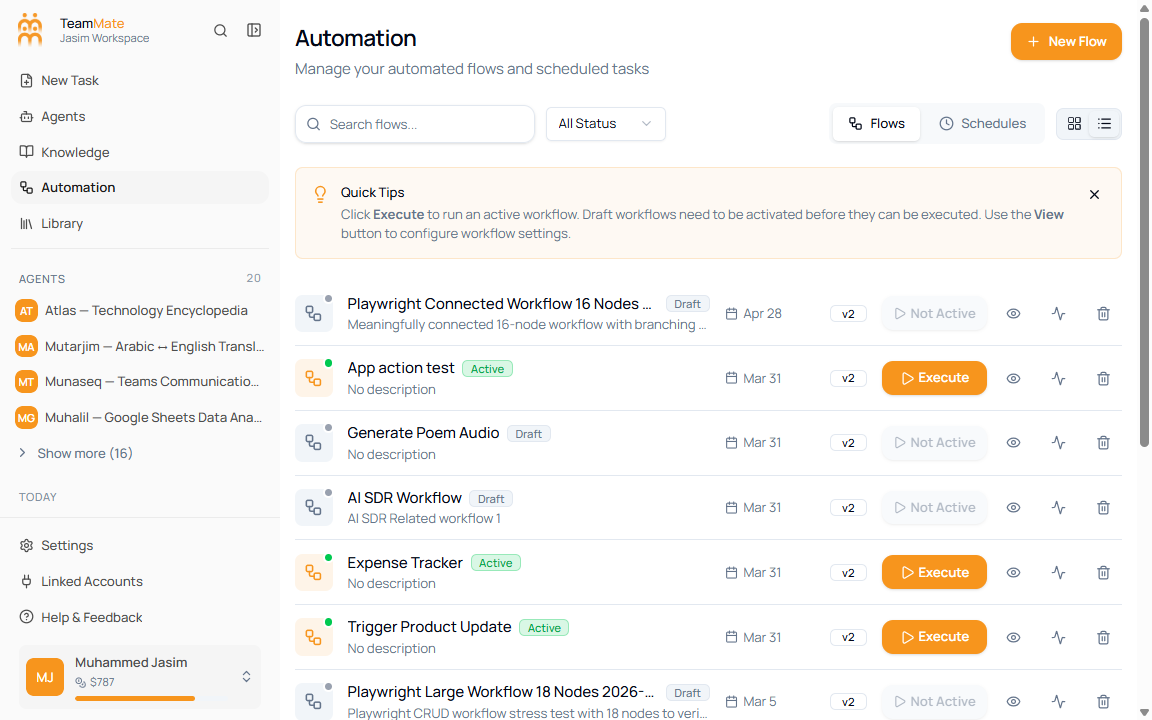
The Automation page opens on the Flows tab. A flow is a workflow automation that can be drafted, activated, run manually, and inspected through execution history.
What you can do here
- Create a new flow with New Flow.
- Search by flow name or description.
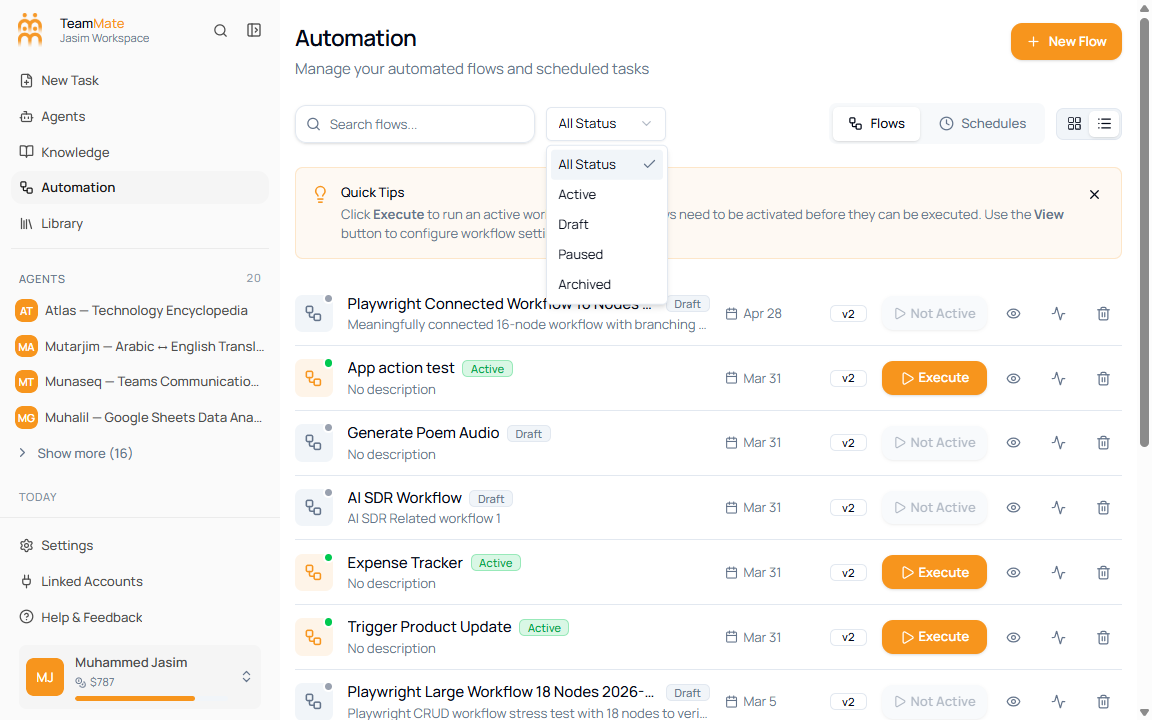
- Filter by All Status, Active, Draft, Paused, or Archived.
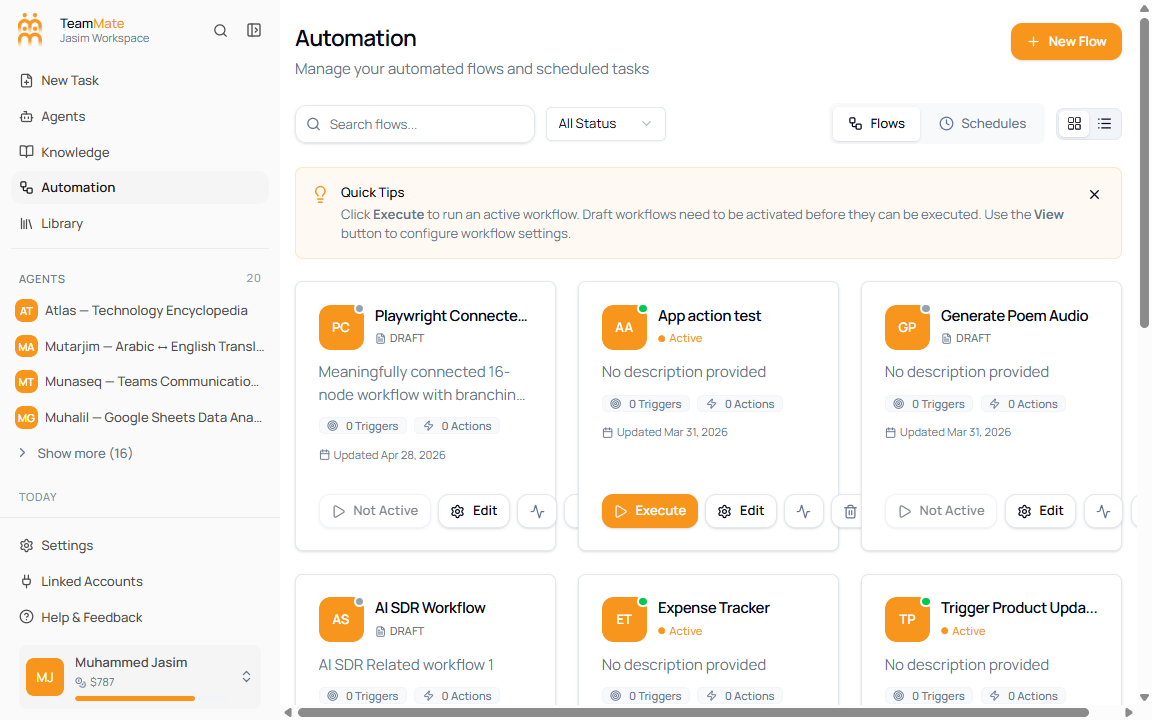
- Switch between card grid and compact list view.
- Run active flows from the list.
- Open a flow in the visual builder.
- View execution history for any flow.
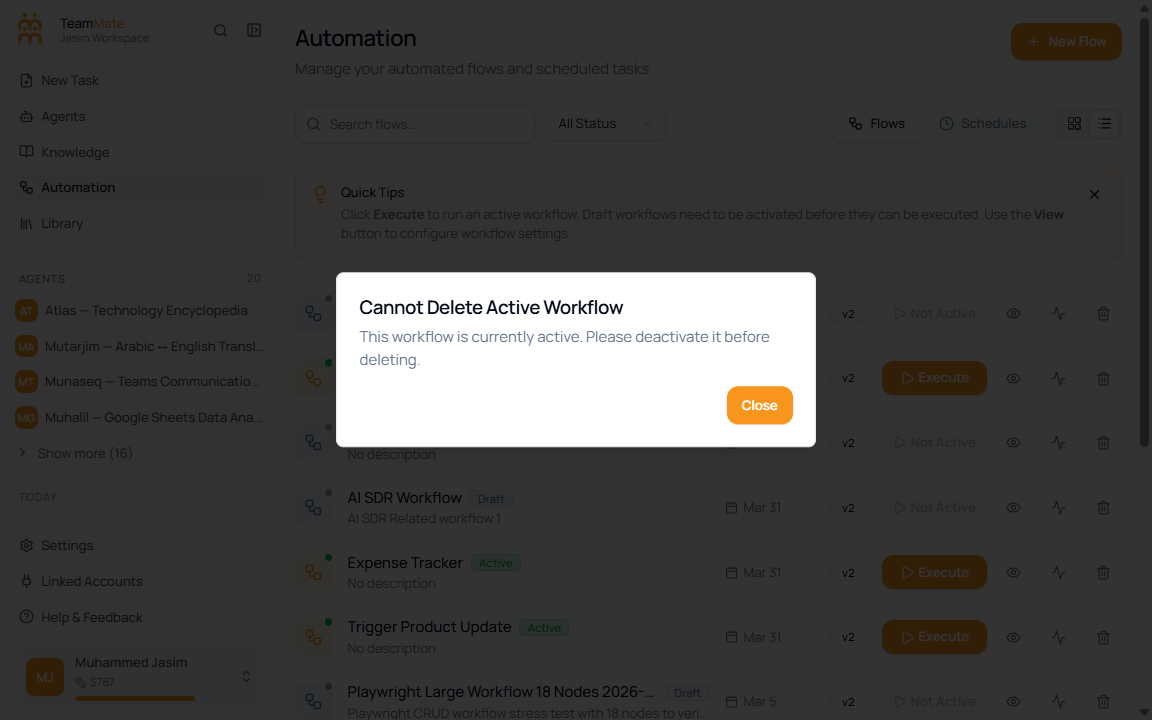
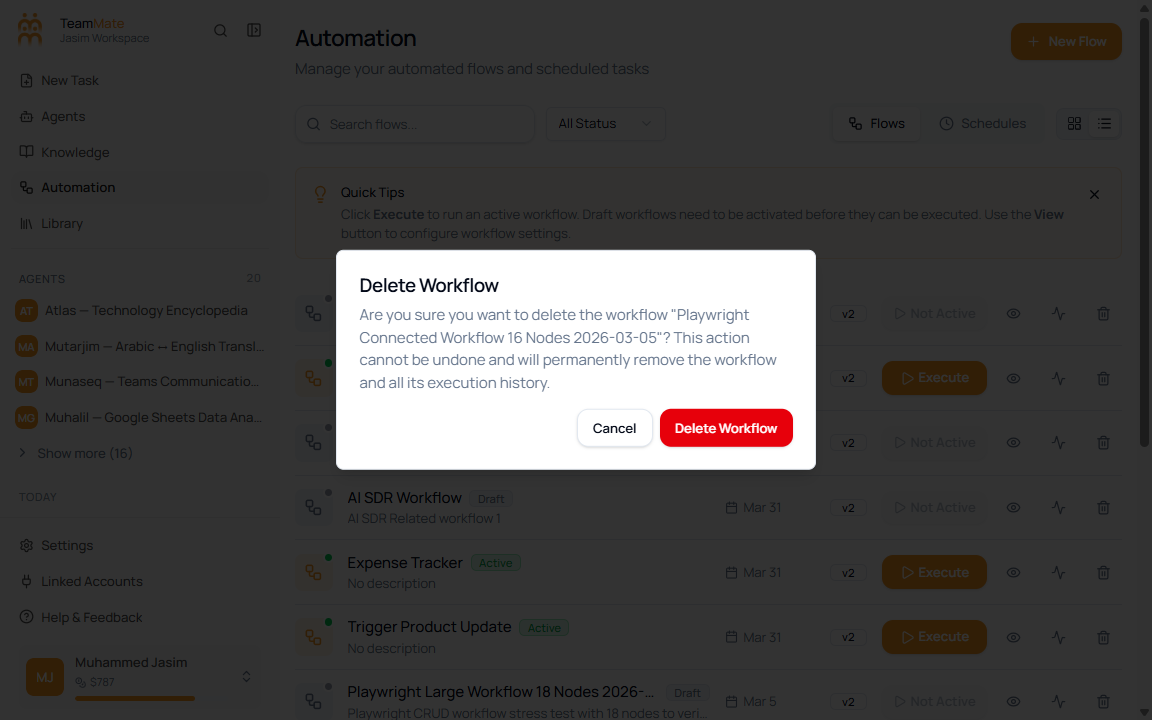
- Delete non-active flows after confirming the warning.
How to find a flow
- Open Automation from the sidebar.
- Stay on the Flows tab.
- Type in Search flows… to filter the list by text.
- Open the status filter and choose one of the available statuses.
- Use pagination at the bottom when the workspace has more than one page of flows.
| Control | Options | What it changes |
|---|---|---|
| Search flows | Text input | Filters the visible flow list after a short debounce. |
| Status filter | All Status, Active, Draft, Paused, Archived | Shows only flows with the selected status. |
| Flows / Schedules | Two tabs | Switches between automation flows and scheduled tasks. |
| Grid view / List view | Icon toggle | Changes how the same flows are displayed. |
How to use list view
- Click the list view icon beside the Flows tab.
- Scan each row for name, status, description, updated date, version, and actions.
- Use the action buttons at the right edge of each row.
Per-flow actions
| Action | Available when | What happens |
|---|---|---|
| Execute | Flow status is Active | Opens the Execute Workflow dialog. |
| Not Active | Flow status is Draft, Paused, or Archived | The run button is disabled until the flow is active. |
| View details | Any flow | Opens the flow in the visual builder. |
| View executions | Any flow | Opens execution history for that flow. |
| Delete workflow | Any flow | Active flows show a warning. Other statuses show a confirmation dialog. |
How to run an active flow
- Find a flow with the Active status.
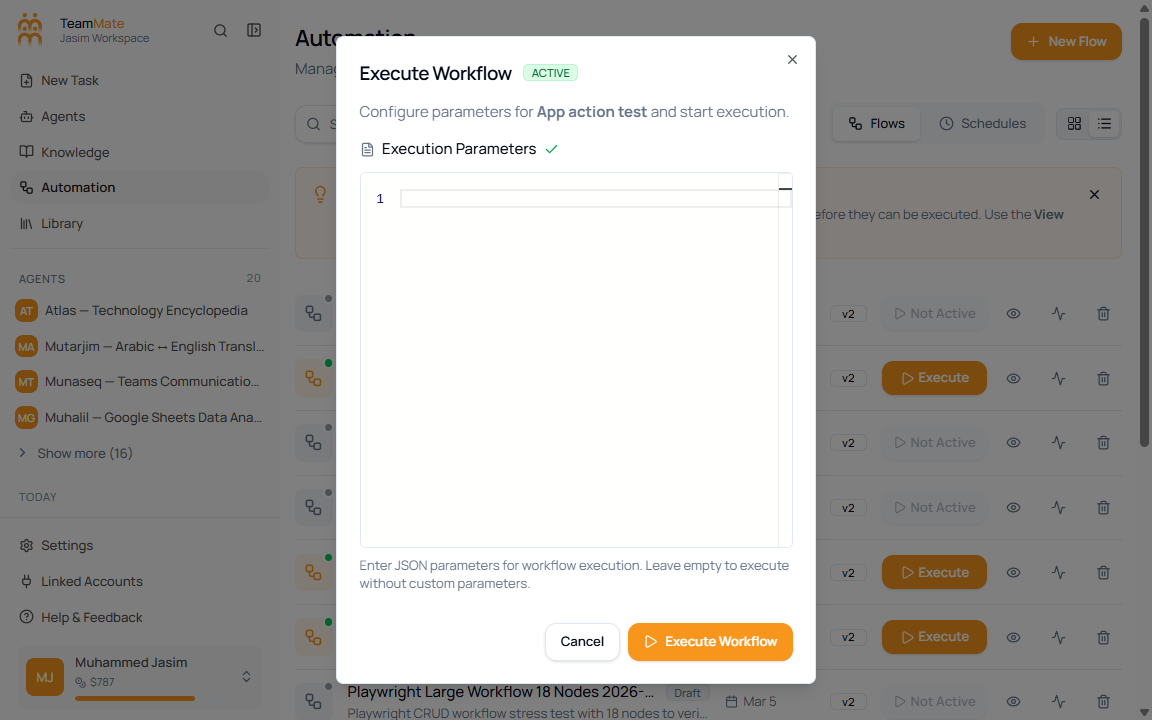
- Click Execute.
- In Execution Parameters, enter a JSON object only if the flow needs manual input.
- Click Execute Workflow to start the run, or Cancel to close the dialog.
How delete works
- Click the delete icon on a flow.
- If the flow is active, read the warning and close it. Active flows must be deactivated before deletion.
- If the flow is not active, review the confirmation dialog.
- Click Cancel unless you are sure the flow and its execution history should be removed.