Agent listing: search, filter, views
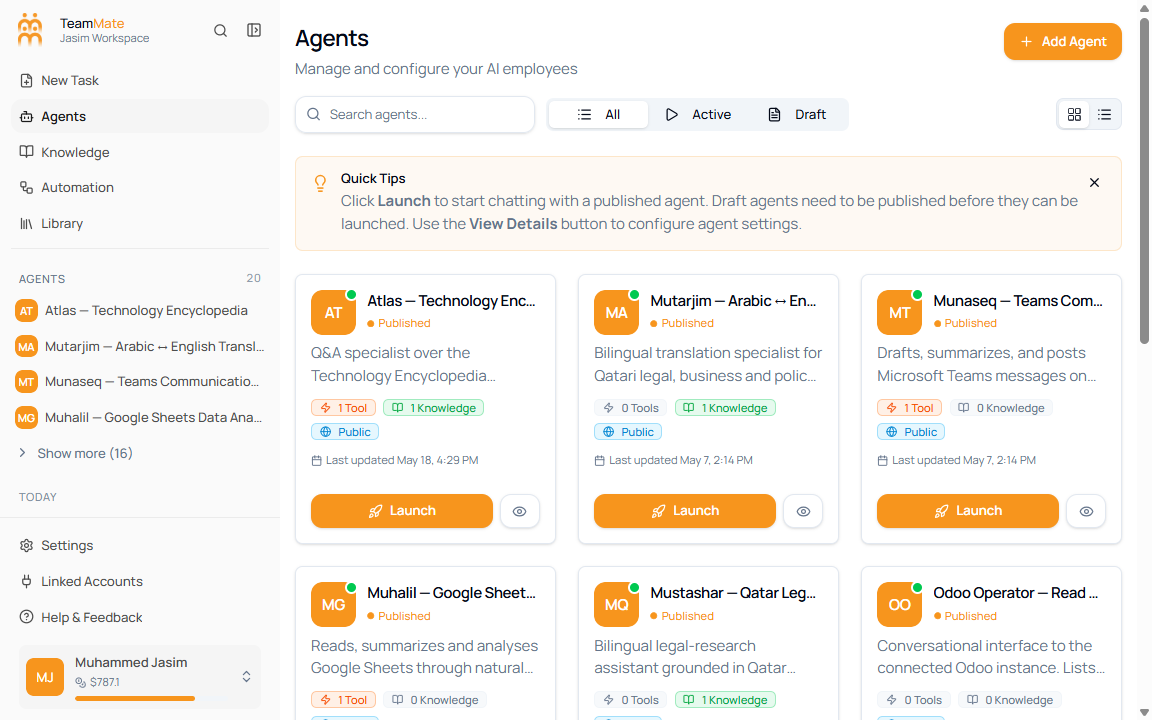
The Agents page is the admin view for finding and managing agents. An agent is an AI employee that can chat with users, use tools, and work from attached knowledge bases.
What you can do here
- Search for an agent by name or description.
- Filter the list by All, Active, or Draft status.
- Switch between card view and list view.
- Open a published agent with Launch.
- Open an agent’s details or configuration with View Details.
- Add a new agent from the page header.
- Move between pages when the workspace has more than 12 agents.
Page controls
| Control | What it does | Notes |
|---|---|---|
| Add Agent | Opens the agent builder for a new agent. | Admin-only action. |
| Search agents… | Filters agents by the search text. | Search runs after a short debounce while you type. |
| All | Shows every agent returned for the workspace. | Includes published and draft agents when both exist. |
| Active | Shows published agents. | Published agents can be launched. |
| Draft | Shows unpublished agents. | Draft agents cannot be launched until they are published. |
| Grid view | Shows agents as cards. | This is the default scanning view. |
| List view | Shows agents as compact rows. | The selected view is remembered in the browser. |
Agent card fields
| Field | What it means | Where it comes from |
|---|---|---|
| Avatar or initials | Visual identifier for the agent. | Agent profile. |
| Agent name | The name users see in chat and admin screens. | Agent profile. |
| Status | Published or Draft. | Publish state. |
| Description | Short summary of what the agent does. | Agent profile. |
| Tools count | Number of non-system tools connected to the agent. | Agent tools configuration. |
| Knowledge count | Number of knowledge base entries attached to the agent. | Agent knowledge configuration. |
| Visibility | Public or Private. | Agent access settings. |
| Last updated | Most recent update time for the agent. | Agent record timestamp. |
| Launch | Opens a chat with a published agent. | Disabled for draft agents. |
| View Details | Opens the agent details or configuration page. | Use this when you need to review or edit the agent. |
Search for an agent
- Open Agents from the app sidebar.
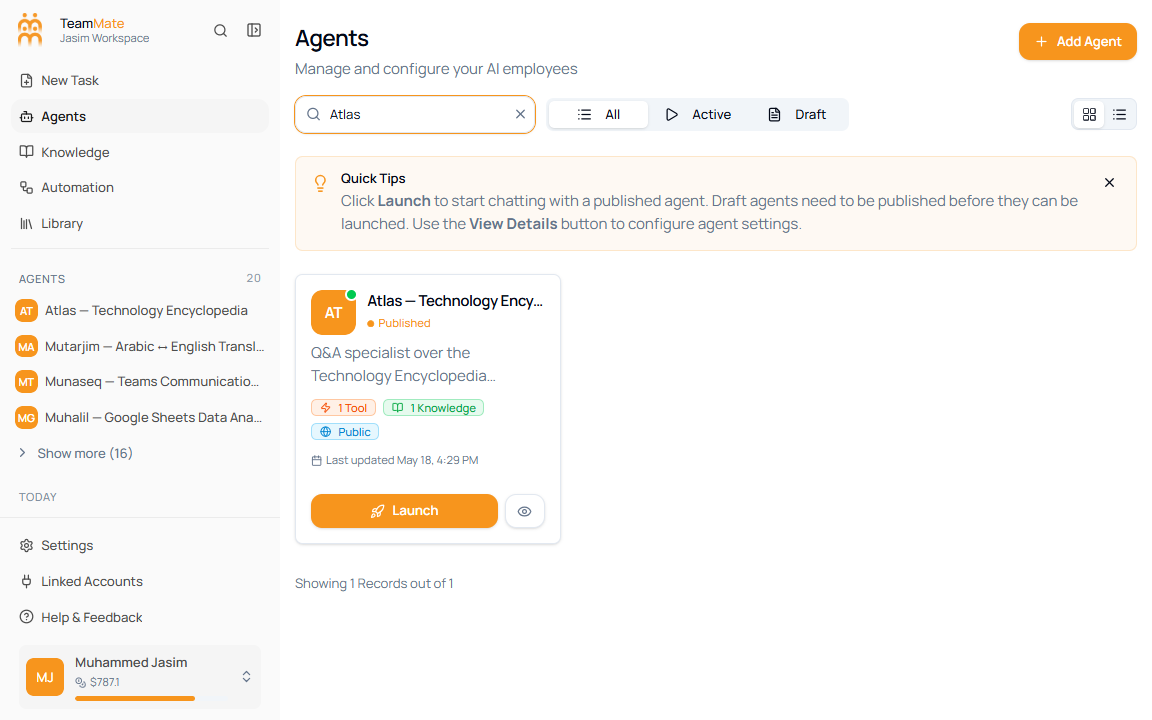
- Click Search agents….
- Type the agent name, function, or a distinctive word from the description.
- Open the matching agent with Launch or View Details.
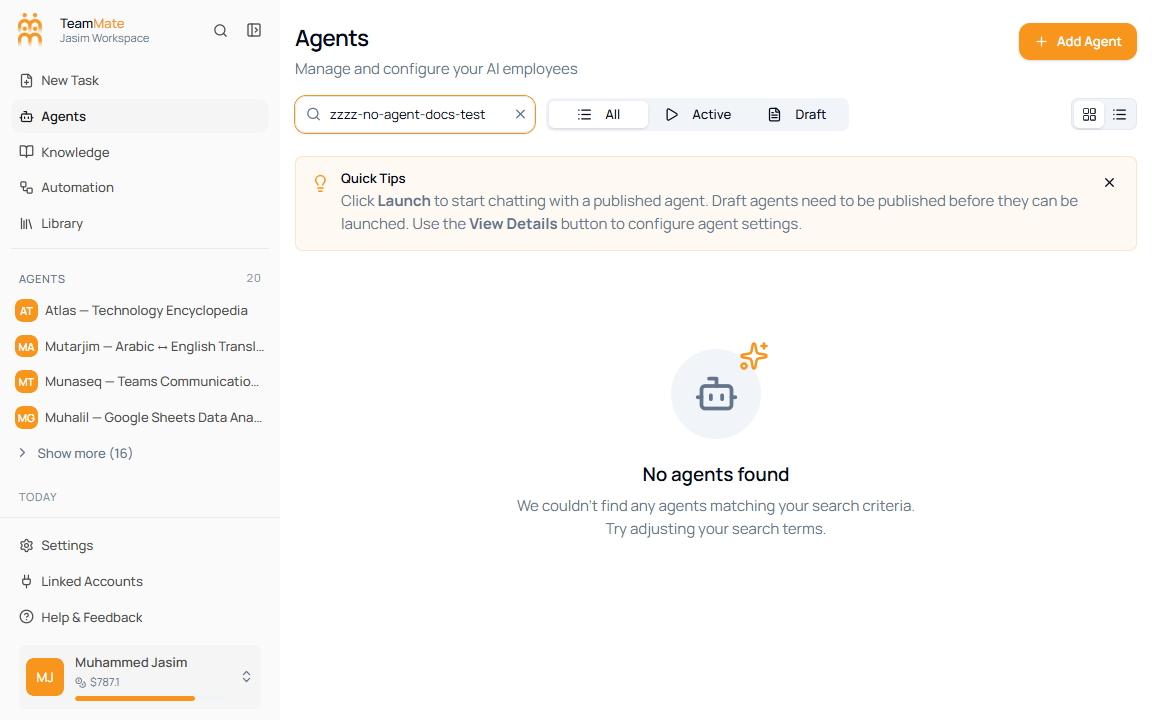
If no agent matches the query, the page shows No agents found and asks you to adjust the search terms.
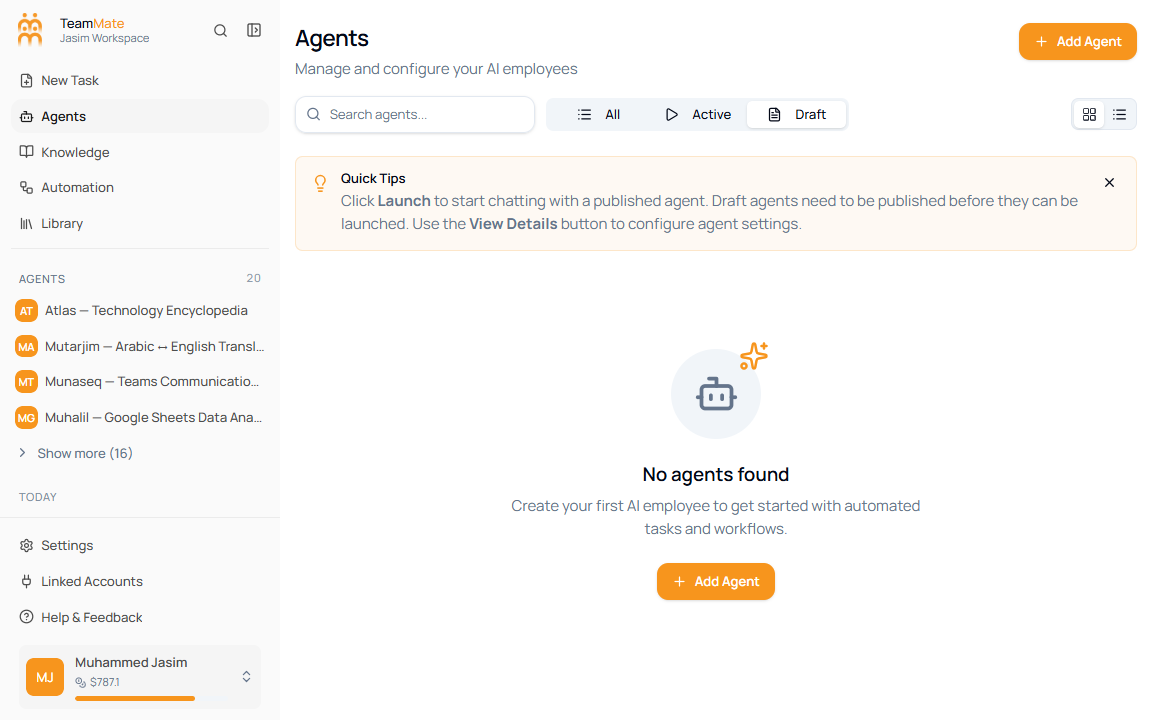
Filter by status
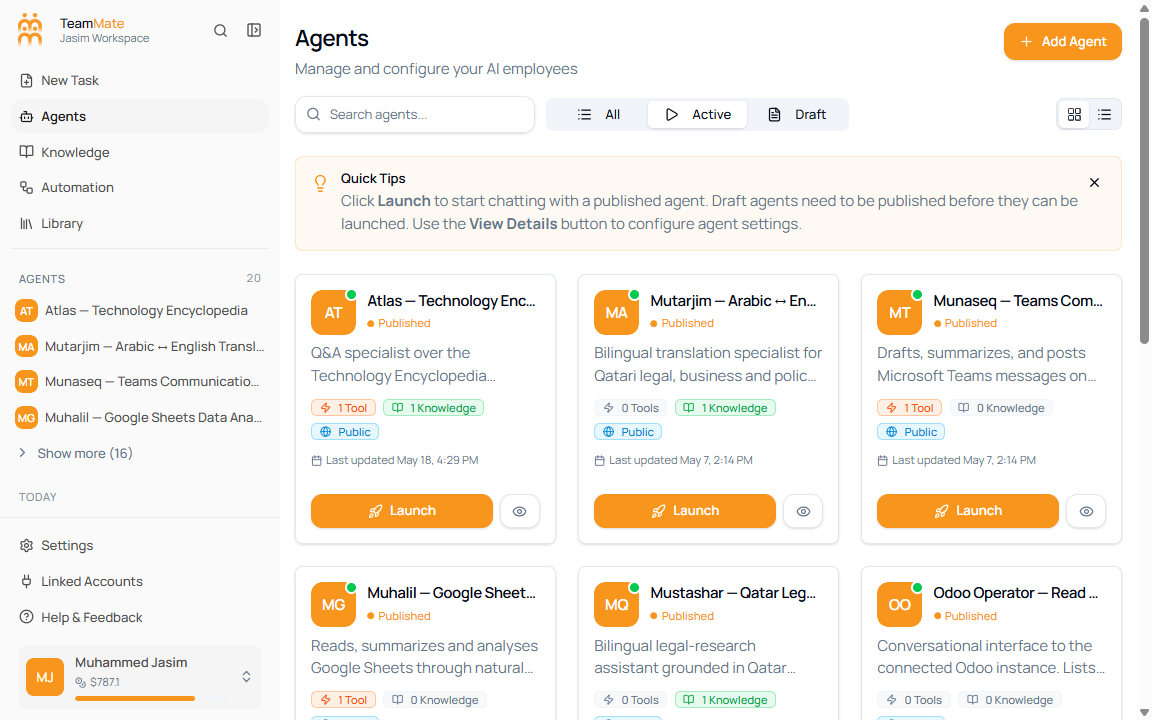
Use the status tabs when you want to focus on launch-ready agents or find agents that still need setup.
- Click All to return to the full list.
- Click Active to show published agents.
- Click Draft to show unpublished agents.
- If the filtered list is empty, use Add Agent or switch back to All.
| Tab | Shows | Primary use |
|---|---|---|
| All | All agents in the workspace result set. | General browsing and admin review. |
| Active | Published agents. | Find agents that users can launch now. |
| Draft | Unpublished agents. | Find agents that still need configuration or publishing. |
Change the view layout
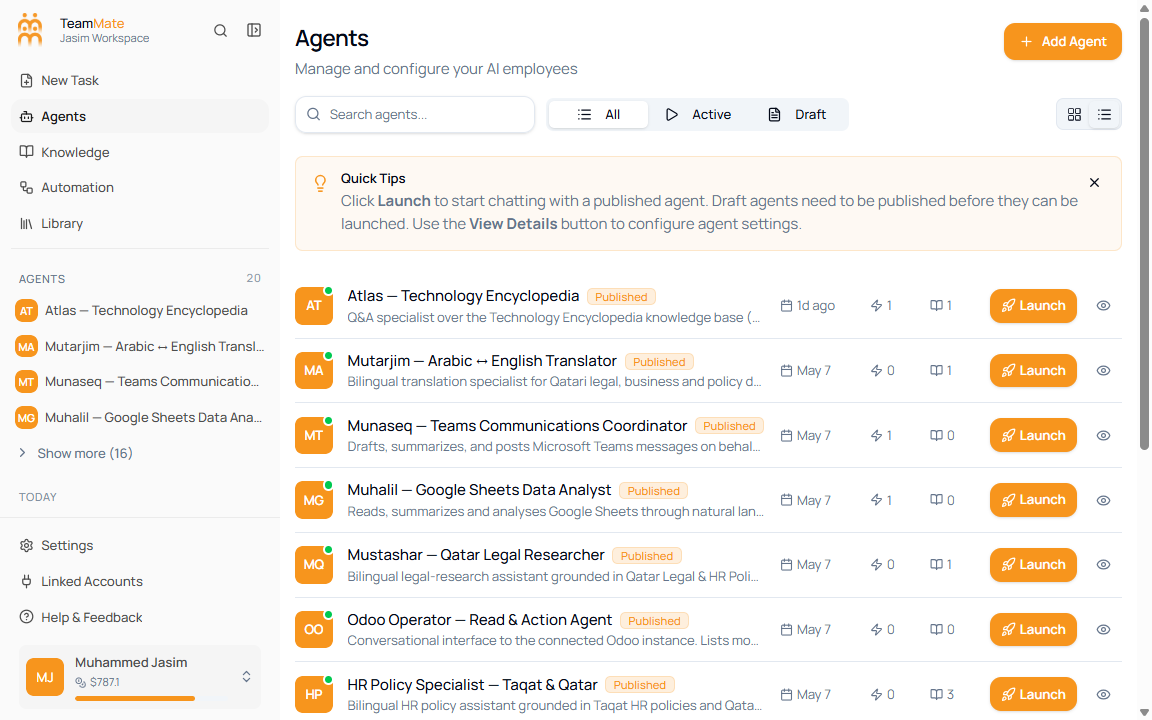
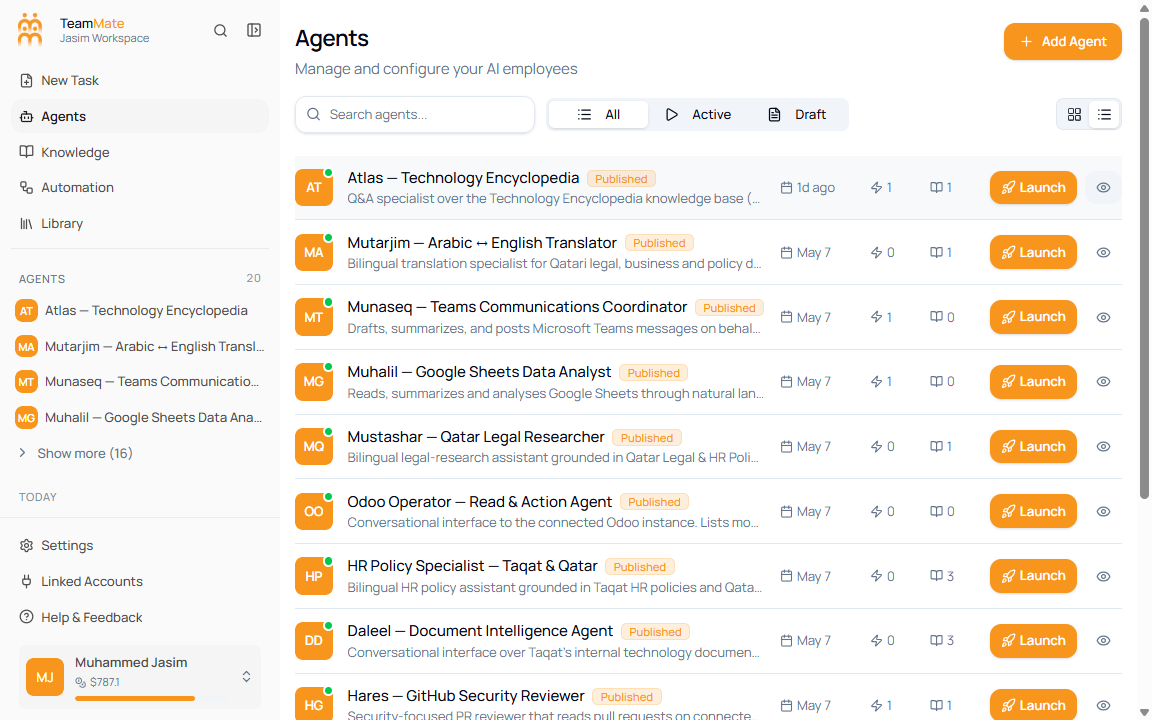
Use the view toggle on the right side of the toolbar to choose how much information appears on screen.
- Click Grid view to scan cards with descriptions, tool counts, knowledge counts, visibility, and action buttons.
- Click List view to show more agents vertically with compact metadata.
- Continue using the same search and status filters. Changing view does not reset the filter.
| View | Best for | Visible details |
|---|---|---|
| Grid view | Reviewing agent purpose and readiness. | Description, status, tool count, knowledge count, visibility, updated time, launch action, details action. |
| List view | Scanning many agents quickly. | Name, description, status badge, updated time, tool count, knowledge count, launch action, details action. |
Dismiss quick tips
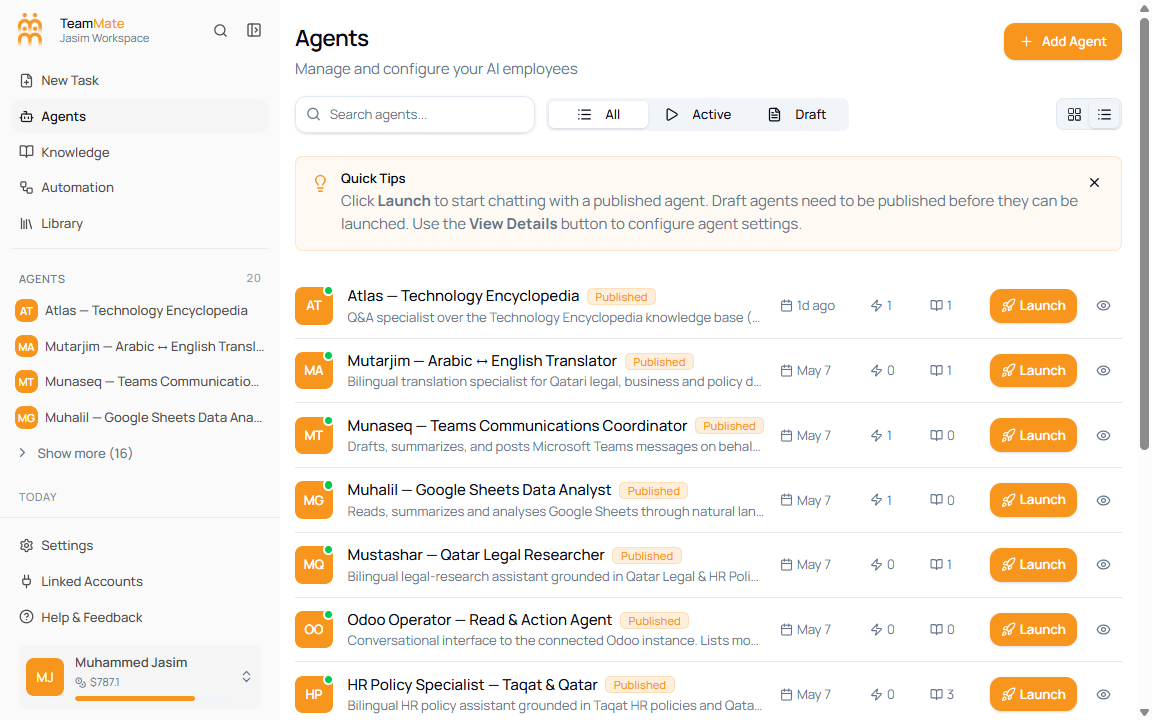
The Quick Tips banner explains the two main actions: launch a published agent or open details to configure it.
- Read the quick tips when you are new to the Agents page.
- Click Dismiss tips to hide the banner.
- The dismissal is saved in the browser, so the banner stays hidden for that browser profile.
Move between pages
The listing shows 12 agents per page. When the workspace has more results, the footer shows the number of records displayed, the total record count, and pagination controls.
- Use Next to move forward through the result pages.
- Use numbered pages to jump directly to a specific page.
- Use Previous to return to an earlier page.
Permissions
The Agents listing is an admin page. Workspace admins can open the list, add agents, and edit agent configuration. Non-admin users should use chat or assigned agent surfaces instead of this admin view.