Create your account & workspace
By the end of this tutorial you’ll have a TeamMate account, a workspace named after your company, and you’ll be looking at the main chat screen ready to send your first message.
This is tutorial 1 of 4 in the Getting started series. It takes about 3 minutes.
Before you start
- Your work email address. Personal email works too, but most teams pick one shared work email so colleagues recognise the workspace.
- A password you’ll remember. There’s no password manager requirement, but a long phrase is easier than a complicated string.
You do not need a credit card to sign up.
Step 1 — Open the sign-up page
- Open your browser.
- Go to https://store.no-downtime.com .
- You’ll land on the sign-in page. Because you don’t have an account yet, click the Sign up link at the bottom.
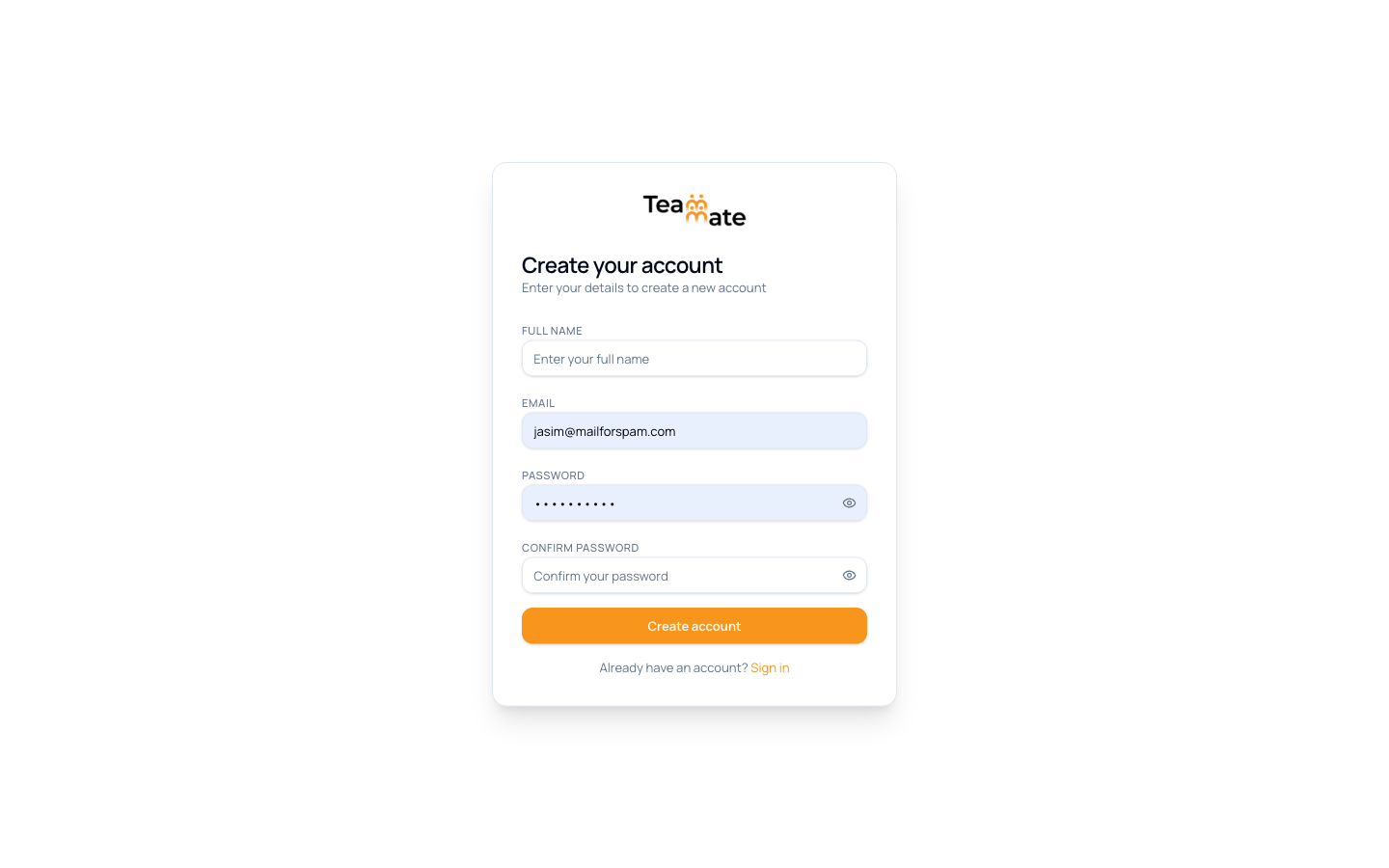
You should now see a sign-up form with three fields: full name, email, and password.
Step 2 — Fill in your details
- In the Full name field, type your name as you want it to appear in chats and on your profile (for example, “Sara Al-Mansoori”).
- In the Email field, type your work email address.
- In the Password field, type a password that’s at least 8 characters long. Click the eye icon on the right of the field if you want to check what you’ve typed.
- Click the Sign up button.
If anything’s wrong, TeamMate will tell you in red text right under the field — for example “this email is already in use”. Fix it and click Sign up again.
Step 3 — Verify your email (if asked)
Some sign-ups need an extra verification step:
- Open the inbox of the email address you just used.
- Look for a message from TeamMate with the subject “Verify your TeamMate email”. If it’s not there in 30 seconds, check the spam folder.
- Click the verification link inside the email.
You’ll be sent back to TeamMate automatically. If your team uses a single sign-on provider (Google Workspace, Microsoft 365), you may instead be asked to sign in there once — follow the prompts and you’ll come straight back.
Step 4 — Land in your workspace
After verification, TeamMate opens your new workspace. The very first thing you see is the main chat screen, with the heading “What can I do for you?”
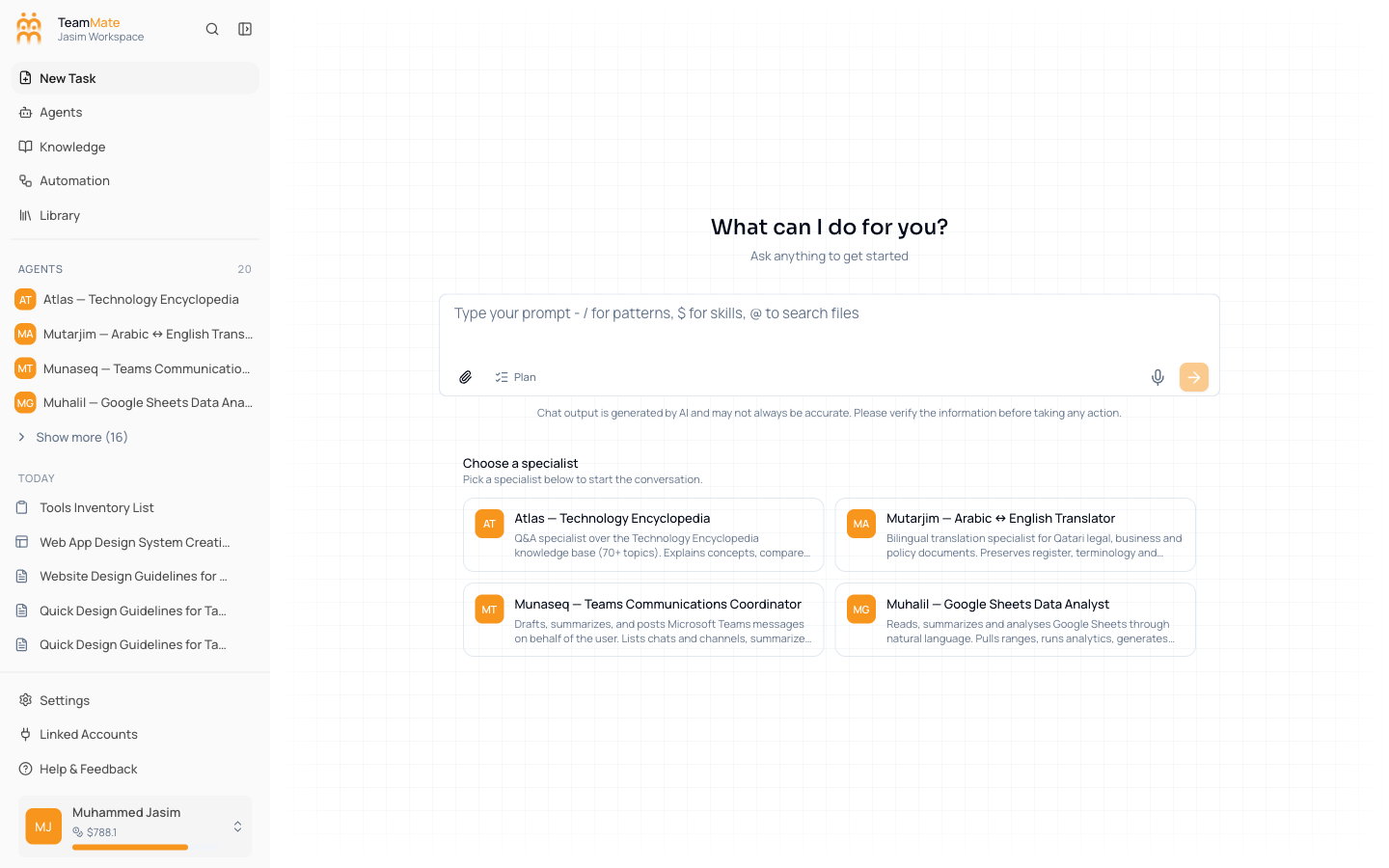
Take a moment to find your bearings. The screen has three parts:
-
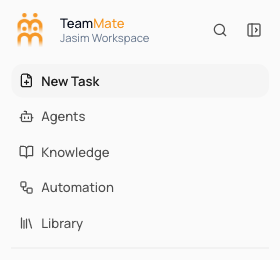
The sidebar on the left. This is how you move around the app. From top to bottom you’ll see: a TeamMate / Workspace dropdown for switching between workspaces, four navigation entries (New Task, Agents, Knowledge, Automation, Library), and your account menu at the bottom.
-
The composer in the middle. This is the text box where you type messages. The placeholder “Type your prompt — / for patterns, $ for skills, @ to search files” tells you about three shortcuts you’ll learn later. For now you can ignore the special characters and just write normal sentences.
-
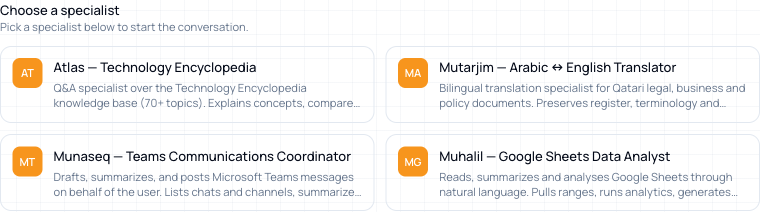
Specialist cards below the composer. These are pre-built AI helpers ready to use. You’ll pick one in the next tutorial.
What just happened
A workspace was created for you automatically. The workspace’s name is what you’ll see in the top-left corner of the sidebar (in the screenshots above it’s Jasim Workspace; yours will be named after you). You’re the workspace owner, which means you can change every setting and invite other people in.
You can rename the workspace whenever you want from Settings → Workspace General. We’ll cover settings later — for now the default name is fine.
What if I can’t see the sign-up page?
- “This site can’t be reached” — check your internet connection, then try again. If your company restricts websites, ask IT to allow
*.no-downtime.com. - The page loads but the form is blank — refresh with Ctrl/Cmd + R. If that doesn’t help, try a different browser.
- You see “An account already exists with this email” — the email is already linked to a TeamMate account. Use the Sign in link instead, or click Forgot your password? to reset it.
Next
You have an account and a workspace. Now talk to it.